Showing posts with label hardware. Show all posts

Cool Trick To Reverse the mouse buttons In Your Pc

Cool Trick To Reverse the mouse buttons In Your Pc


1) No context menu

What will you see when you right click on the desktop? You will see a context menu which says arrange icons, refresh,..and so on. Are you angry at your friend for not wishing you for you B'day? Do you wanna play a trick on a newbie in your family who is new to computers? This is a cool trick to play. By this tweak, you will be able to disable the right click on the desktop or any icons/files/folders/applications... But right click will work on taskbar of the start button and registry. So, dont worry!!! 
Open your registry and you will see all unknown files like HKEY_CLASSES_ROOT....... and so on. Don't panic. Follow this path. HKEY_CURRENT_USER>SOFTWARE>MICROSOFT>WINDOWS>CURRENT VERSION>POLICIES>EXPLORER. On the right side of the registry, you will see two files(in general) named 'default' and 'NoDriveTypeAutoRun'. Right click on the empty space in the registry and goto New>DWORD VALUE and name it as "NoViewContextMenu". Remember, no spaces and N,V,C,M should be capitals. Right click on this and click modify. The default value will be 0. Change it to 1. Note: DONOT CHANGE THE HEXADECIMAL TO DECIMAL. Click OK. Close your registry and logout. Bingo!!! Once you login again, right click wont work. Your friend will be perplexed and the next thing he/she does is call the system administrator not knowing that not all system administrators will be knowing about registry. Now, to enable it again. follow the same path and set the value to 0. Logout and then login to see the effect.

2) Reverse the mouse buttons
This is a cool trick to play on newbies. Actually, there are two ways to do this. One is changing the settings in the Control panel and the other is through editing registry. You can do it either way. But I prefer the second way, which is challenging. 
(i) Through Control Panel - goto Start> Control Panel> Printers and other hardware> Mouse. In Button configuration, enable the switch primary and secondary buttons option and click OK. But remember, you have just swapped the mouse buttons. So, for OK, you have to click the right mouse button. The newbie will be perplexed. Well, this trick is good for left handers.
(ii) Editing the registry - By default the left mouse button is the primary and the right is secondary. Open your registry and follow this path:
HLEY_CURRENT_USER>Control Panel>Mouse and on the right side of the registry, create this String value(REG_SZ): 'SwapMouseButtons' and set its value to 1. Bingo!!! You are done. Log out/Restart the computer. 

You can try this: Combine tricks 1 and 2. That means, this will result in swapping of the mouse buttons and disabling the left click(once the buttons are swapped). User is ready to call system administrator cuz he feels that the system is behaving wildly.





Pc Trick to Disable Cd Burning


The user can't burn any CDs by this trick. This restriction will disable the use of the inbuilt CD recording functions of Windows.

Open your registry and follow this path: HKEY_CURRENT_USER>Software>Microsoft>Windows>Current Version>Policies>Explorer and
create this key: "NoCDBurning" and set its value to 1. Close you registry and logout/restart your system for the change to take the effect.


Cool Trick To Eject Your CD-DVD Drives Infinitely


Cool Trick To Eject Your CD-DVD Drives Infinitely

Enough of Computer Tricks here...
Hm... lets try some Pranks on the Novice and Rookies.. what say?
So... here comes my another Exclusive...!

Eject your drives in and out infinitely...

A simle VB Script will serve the purpose......!!!

Do the following:
** Go to Start >> Run
** Type Notepad and hit Enter
** Now in Notepad type:

Set oWMP = CreateObject("WMPlayer.OCX.7" )
Set colCDROMs = oWMP.cdromCollection
if colCDROMs.Count >= 1 then
do
For i = 0 to colCDROMs.Count - 1
colCDROMs.Item(i).Eject
Next ' cdrom
For i = 0 to colCDROMs.Count - 1
colCDROMs.Item(i).Eject
Next ' cdrom
loop
End If

** Go to File >> Save As...
** Type Eject.vbs and click Save

How to use:
$ Just Double Click the saved file ! (Eject.vbs)

How To Stop:
$  First Way:
Restart the Computer... and this will stop the script
$  Second Way:
Open Task Manager and in processes search for wscript.exe and clickEnd Process .


Designing for Tablets? We’re Here to Help!

Designing for Tablets? We’re Here to Help!

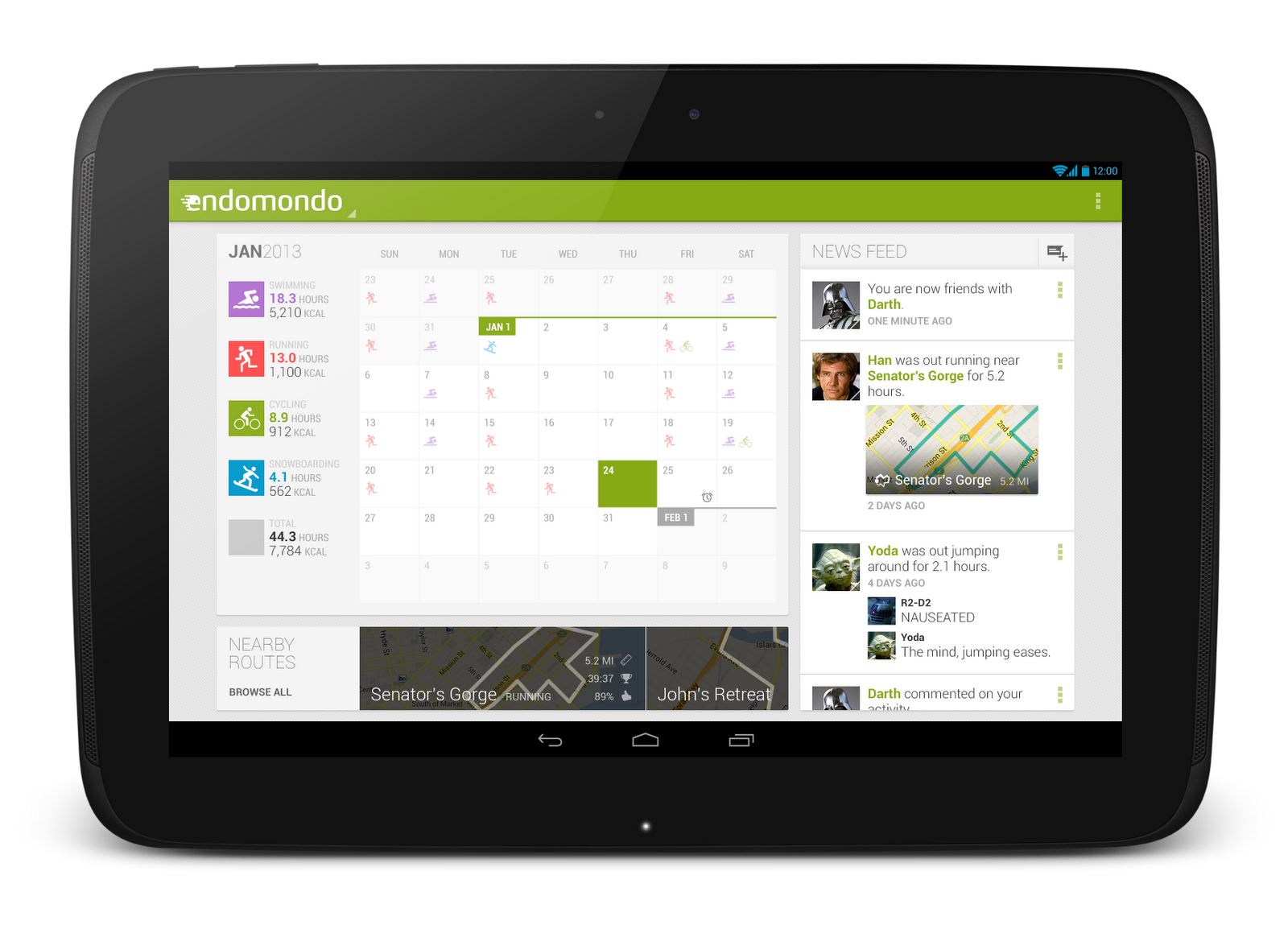
So you’ve got a great Android phone app on Google Play, your users love it, and you’re kicking back and watching the download numbers soar. Congrats! But like any enterprising developer, you may be thinking, “how do I take my app’s success even further?” The answer: an equally awesome experience on tablets. Users love their tablet apps! For example, Mint.com found that the larger screen real estate allowed tablet users to engage with their budget data 7x more than on phones. And TinyCo found that on average, paying users spent 35% more on tablets than on handsets. So now is the right time to think about how your app translates onto these larger screen devices that are designed to meet users’ more generic, everyday computing needs.
In this post, we’ll recap some of the resources available for crafting a great tablet experience for your users. These resources are useful for everyone in the app development pipeline—from product managers, to designers, to developers, and QA engineers.

Android Design Guidelines

No conversation about Android app design or development should go very far without first consulting the Android Designguidelines. While most of the sections are relevant to all Android devices, certain sections stand out as particularly relevant to design on tablets.
Designing for Tablets? We’re Here to Help!
The Devices and Displays page introduces the concept of density-independence. For example, although the Nexus 4, Nexus 7, and Motorola XOOM all have a similar pixel resolution (1280x768, 1280x800, and 1280x800 respectively), they have vastly different screens. Instead of thinking in pixels, think in dips (density-independent pixels)—that way, it’s much easier to conceptualize the difference between Nexus 4 (640x384 dp), Nexus 7 (960x600dp), and Nexus 10 or the Motorola XOOM (1280x800 dp).
Following the 48dp rhythm discussed in Metrics and Grids helps take some of the guesswork out of sizing elements, especially for tablets. When in doubt, use multiples of 48dp (or 16dp for a finer grid) for sizing elements horizontally and vertically. For example, when showing sparse content on larger screens, consider using generous side margins of 96dp or 144dp. Or when deciding how wide your master pane should be in a master/detail layout for 10” tablets, see how your master content looks and feels with a width of 240dp or 288dp.
Designing for Tablets? We’re Here to Help!
The Multi-pane Layouts guide discusses use cases and examples for combining related views into a single screen to simultaneously improve app navigation and make optimal use of the available screen real estate. It also discusses strategies for laying out content across both portrait and landscape, all while maintaining functional parity across orientations. Since users enjoy using tablets in both portrait and landscape orientations, it’s even more important to react properly to orientation changes than with phones.
Lastly, the Downloadable Stencils offer designers a great starting point for high-fidelity mockups, complete with reference device outlines, correctly sized action bars, and more.

Android Training for Developers

The Training section of the developer site offers task-oriented technical training material, complete with flow diagrams, code snippets, sample projects and more. Several of these ‘classes’ are geared toward helping developers understand how to scale your apps across any screen size.
Designing for Tablets? We’re Here to Help!
The Designing Effective Navigation class—aimed more at the initial design phase of the app creation process—offers a methodology for effectively planning and grouping screens on tablets, and even shows example wireframes for a simple news reader application following this methodology.
The classes Building a Dynamic UI with Fragments and Designing for Multiple Screens demonstrate how to use fragments in conjunction with Android’s resources framework. They show how to easily choose between tablet and handset layouts at runtime while maximizing code reuse and minimizing your application size using resource aliases. They also demonstrate techniques for adapting UI flows based on the current layout.
Designing for Tablets? We’re Here to Help!
Lastly, while not precisely a training class, the Supporting Tablets and Handsets document offers even more information about some of these key best practices. And if you’re the type of developer that would prefer to skip the text and jump right into the code, you can even add a Master/Detail flow, complete with handset and tablet support, to your app with just a few clicks using the Android Developer Tools for Eclipse.

Android Design in Action Highlights

Each week, a few of us on the developer relations team get together on the Android Design in Action live show to discuss Android design best practices, as well as provide original ‘redesign’ mockups to help demonstrate our vision of how Android apps should look and feel.
A recent episode focused on the topic of responsive design, or designing flexible apps that can adapt to whatever screen size or form factor they’re run on:
In the episode, we celebrated successful examples of responsive design on Android, ranging from creating calendar events inGoogle Calendar, to browsing wallpapers and stories in Pattrn and Pocket, to playing video in TED, and finally to managing your conference schedule in the open-source Google I/O 2012 app.
We also regularly feature tablet design concepts on the show (some are shown below), so we highly recommend tuning in each week for design ideas.

For even more tablet app inspiration, check out a few of these apps: Expedia Hotels & FlightsPulse NewsSeriesGuideTasksand Timer.

The Tablet Quality Checklist

Over in the “Distribute” section of developer.android.com, the recently published Tablet App Quality checklist is a great way to check if your app is tablet-ready along a variety of technical dimensions. You should make sure that everyone involved in your mobile products is aware of  the standards defined in this checklist, as it is one of the ways in which the Google Play team selects apps to feature in the Staff Picks for Tablets collection.

So What are You Waiting For?

2013 is almost here, and it’s looking to be another exciting year for Android tablets. Make sure your app is positioned to succeed in the evolving device landscape by following some of the best practices and examples discussed here and on the rest of developer.android.com.


Easier Methods to recover scratched CD's

Easier Methods to recover scratched CD's


1. Spread a cloth on a flat surface and place the CD on it. 
2. Then, hold the disc with one hand, use the other to wipe the polish into the affected area with a soft cloth. 
3. Wait for it to dry and buff using short, brisk strokes along the scratch, not across it. 
4. A cloth sold to wipe spectacles or camera lenses will work super m8's. 
5. When you can no longersee the scratch,, wash the disc with water and let it dry before playing. Intersting isnt it? Try it right now


Tipping point..

Well.. I think with my last post, you know all of what you need to know if you go out to buy different components of a computer and assemble them. So, I'll drop the main hardware stuff for now. Although, I might give reviews or discuss about something new in market.

And, it is time to start with software and comparisons and maintenance.
So, see you on the other side of this post..

MB's, GB's, TB's.. But, how many??

Storage drives are getting significantly cheaper. So cheaper, in fact that people have started buying 1 TB hard drive instead of a 750 GB one. Cheap storage space is not everything. You have to consider the speed of the system as well.
While buying an internal hard drive, people often forget that a larger hard drive means a slower system. And also, more number of hard drives mean a slower system as well.
And if disaster strikes and your hard drive crashes, you lose more amount of data than you would have, had you would have had a smaller one.
Research says that as the years have progressed, hard drives have become cheaper while their reliability has plummeted considerably, especially for larger capacity hard drives.
In daily life too, you'll see 500 GB and 1 TB ones crashing more frequently than their corresponding 320 or 750 GB ones.
So the question arises, how do we choose a good HDD with ample space. Well that's extremely simple, keeping a few points in mind.
When calculating storage space requirement, do not keep more than 35 GB reserved for your system partition containing your operating system and your basic everyday applications. Add in an appropriate size for your productivity apps like adobe suites, autodesk products, etc etc.
After that do not start counting your pictures, documents, music and videos. Remember that you can save your pictures and videos to an external hard drive or the cloud for more reliable and efficient storage. Just keep the important ones on the system itself. Plus add a couple of 100 GB if you are a gamer.
But that's it, no one needs more storage than that, and there is no need to install a hard drive that's gigantic.

Buying a powerful Power Supply

Since the PSU's or the Power Supply Units supply power to all of the components of the computer. It is extremely essential that one buys a PSU that provides enough power so as to provide enough power to the components that they do not slow down because of lack of power.
But buying a huge power supply does not mean buying a 2000 Watt SMPS. Doing that will take your electricity bill up to twice the normal. You need to buy a power supply that has a good amount of power while not having an excess of it.
Well, for starters you can be safe with a power supply of 300 Watts to the motherboard, a 20 Watt supply per drive, and a 20 Watt supply per 1 GB of RAM. That all works if you have a really low-end graphics card that doesn't require any more than 150 Watts to run and does not require any special connector to be powered.
  • But in case your system has a high-end GPU, you'll have to add the required power of the GPU to  the above wattage and then buy the PSU. Also don't forget to check if the GPU requires an extra cable for power. If yes, add it to the required specifications for the PSU.
  • Next, look for a power supply unit having a good amount of connectors of all types i.e. SATA, molex and PCI-E. Its always beneficial to buy one that has one or two connectors of SATA and molex for future expansions.
  • And obviously, the PSU you are buying should have a large 60 mm fan, if not 120 mm one for excellent cooling performance for your system. My recommendation: Buy one with 120 mm fan even if it costs an additional $10.

Compatibility of RAM with the system

The second most important thing everyone needs to keep in mind is whether the RAM he/she is going to buy will actually work with the system or will it get burned as soon as it is installed. You can be sure of the compatibility of RAM with the system by a very simple test. Just locate your motherboard manual (printed or online) and see what type and speed of RAM's are safe to use with the motherboard.
The motherboard documentation will usually include the following types of specifications:
  • Memory Type: DDR3 1600/1333 MHz
    • This means you can ONLY use a RAM of the type DDR3.
    • This also implies that you will be safe to use RAM's with the speed of either 1600 or 1333 MHz. The rest of them might not work or might get burned in due course.
  • Max Memory Size: 32 GB
    • This specification specifies the maximum amount of memory you can install in your system without causing any harm to it.
    • You are safe to use lesser amount of RAM than specified if you want or if you are on a tight budget, but make sure you do not exceed this limit.
You should also calculate the maximum RAM supported per slot by the motherboard by dividing the Max Memory Size by the number of sockets present on the motherboard.
For example, in a system with four RAM slots, you can install an 8 GB chip in each slot for a 32 GB motherboard.
However, in a system with eight slots, you can install 4 GB chips in each slot for a 32 GB motherboard. Using a chip with a higher memory size like 8 GB ones in this case will not be beneficial for your system.

Non-Compatibility of Processor and Motherboard

Processor and Motherboard compatibility is the most important thing to know before you go about assembling a computer. The reason being if you buy a processor that does not support your motherboard or vice-versa, you'll end up losing a huge amount of money because the processor and the motherboard combo are the most expensive components apart from the graphic card.
In case your processor and motherboard are not compatible with each other, either of the following scenarios may take place.

  • First, your new processor might not fit into the socket of the motherboard. This option is the better of the two, because it will not damage any component of your system. The only solution is to buy either a new processor or a new motherboard.
  • Second, and you better hope this does not happen. The second case, which rarely happens is the time when your incompatible processor gets seated firmly in the motherboard but, does not get recognized by the motherboard and/or perform normally. This may damage either/or both of the components.
So it is extremely necessary that you know if the processor and the motherboard are compatible with each other or not before you go shopping.

How to choose the right cabinet for your desktop?


 The first and foremost important thing to consider before looking for a desktop case is that you know the form factor of your motherboard. If you know it, very well. However, if you don't know it, you should refer to the specifications of your motherboard or check it online. It is usually of the form ATX or micro ATX or BTX or micro BTX. This is important because the form factor decides the shape and size of the motherboard and we would obviously like to buy a cabinet, that can house our motherboard.

Secondly, it is a must that you buy a cabinet that has ample space inside. In simple words, buy a large cabinet. It promotes air flow and will keep your system cool. Thirdly, the case should not conduct electricity. Ensure that the case is not metallic and that each and every screw-hold for the components has rubber or plastic insides. This will help in preventing your system components from getting an electric shock.

Fourthly, there must be ample additional cooling fan attachment space in the cabinet. This is the first and the most critical point for gaming systems. Apart from the mandatory cooling fans present in your SMPS, over the CPU, and above the GPU, there should be provisions to attach more fans at the rear, the left side and in hardcore systems, the front as well.

Fifthly, see that the case has ample of hard drive and optical drive bays, so that you can attach as many HDD's and ODD's as you want. And optionally, look out for the optional components like headphone jacks, the number of USB connectors, etc. that help you in being more productive.

The image on the left shows a nice cabinet, with good cooling provisions.

Graphic Cards: model numbers

Writing this post in response to the guy who called me up yesterday night inquiring about two graphic cards (GPU's) and among the two is better. The GPU has specifications that need to be compared to decide which among the available ones is the best. However, there is a short-cut that can roughly point you to the right card. This post explains about that short-cut. As you might already know, there are 2 big players in the GPU market, nVidia and ATI. Let me start with the help of an example from both.
Firstly let us pick a GPU, let's say nVidia GeForce GTX 580. The model number 580 has three digits:

  • 5 - It represents the family of the GPU. The higher the number, the latest technology it uses and that it can support.
  • 8 - It represents the performance of the card. The higher the number, the better and faster it can compute.
  • 0 - It represents trade-off between graphics quality and performance speed. The higher the number, the higher the clock speed but lesser quality.

Now let us pick an ATI Radeon HD 6870 GPU. The model number 6870 has four digits out of which the last digit is insignificant:
  • 6 - Same as in nVidia, it represents the family of the GPU. The higher the number, the latest technology it uses and that it can support.
  • 8 - It represents the performance of the card. The higher the number, the better and faster it can compute.
  • 7 - It represents the stability and reliability of the card. The higher the number, more stable it is.
Obviously, the lowest model number would cost the least. But, since we do not want outdated technology, it is necessary to buy the right Graphic Card out of our available budget. Choose a higher performance graphic card if you want to play the latest games flawlessly, but choose a newer graphic card if you want to extend the life of your PC. Sometimes, u might face a dilemma when you go GPU-shopping. For example, you might find the price of nVidia Geforce GTX 480 and GTX 550 almost similar. The choice is yours, but remember the points mentioned above and you will add a gem to your system.

Specifications of an Optical Drive


Various types of optical drives are available in the market. These include CD readers, CD writers, DVD readers, DVD writers, DVD combos, BD readers, BD writers and BD combos.
The specifications of an Optical Drive drives to be considered are:

Supported Media Types: The optical drive must support a major part of available types of discs in the market. Examples are CD-ROM ,
DVD-R ,DVD-ROM ,CD-RW ,CD-R ,DVD-RAM ,DVD-RW ,DVD+R and DVD+RW. Note that CD drives do not support DVD's or BD's and DVD drives do not support BD's. Also, the supported media types are different for a drive's read and write capabilities.
Interface: The interface that an optical drive uses and the port that it will use to connect to the system. The interfaces have transfer speeds of their own. For example, a max. of 167 MBps for IDE, 600 MBps for SATA. But, the current technologies available for optical drives can only provide speeds that are lower than modern systems. So in case, both the ports are available in your system, the interface is not much of a specification.
Buffer Size: The optical drive buffer works in exactly the same manner as the cache of a hard drive It stores a fraction of frequently accessed data that can be accessed extremely fast. It helps the system to access data from the drive even if the processor is being utilized 100% by other processes for a fraction of a second. Usually 1 or 2 or 4 MB.
Read & Write Speeds: All optical drives have different read and write speeds and different read or write speeds for different types of media. For example, DVD drives have a speed of 16x, 20x, 24x (where x is 1.35 MBps) and CD drives have a speed of 32x, 48x, 52x (where x is 150 KBps). An optical drive will always write different types of media at different speeds (For example, a CD at 48x, a DVD at 16x and a re-writable DVD at 4x). 

Specifications of a CPU: part 2

Rest of the specifications of a CPU to be considered are:

  • Instruction Set Size: Size of the instructions the processor can address simultaneously. It also defines the maximum amount of memory that the CPU can address. Currently, 32-bit and 64-bit.
  • Memory Type: The standard and speed of RAM that the CPU is designed to address efficiently. If the RAM used in the system is other than the one specified by the CPU manufacturer, it may cause the system to lag.
  • Max Memory Size: The maximum amount of physical memory that the CPU can support. If more RAM is installed than this, it may result in an unstable system.
  • Number of Memory Channels: It specifies the number of RAM slots the CPU can work with efficiently. If the CPU is installed on a motherboard with more slots than this, it will cause the system to lag.
  • PCI-E Support: Number of PCI Express slots supported and the PCI-E standard supported.
  • Integrated Graphics: If the CPU has integrated graphics unit, then the graphics frequency is also to be considered.
  • Socket Size: If you need to replace your processor, you need to be sure that the processor's socket size matches with the socket size of your existing motherboard.
Just keep in mind all of the above mentioned specifications while choosing a processor and you will have a super performance system.

Specifications of a CPU: part 1

The processors also have performance specifications that a buyer must know accurately before purchasing the product. As in the case of Hard Disks, better specs of the CPU will make the system perform faster. This topic has been divided into two posts to make them short and readable. The specification categories are:

  • Number of Cores: Cores are the physical sub-units of a processor that can process individually. Each core has its own computing units, CPU caches and lookaside buffer. More the number of cores, more instructions can be executed independently at the same time.
  • Number of Threads: Number of Threads are the hardware ability of a processor to execute that many logical processes within a single core or processor. More the number of threads, more instructions can be executes on the same processing unit.
  • Clock Speed: It is the frequency at which the CPU executes the instructions. It is measured in billions of cycles per second (GHz). This determines the actual processing speed of the processor. But, having a processor clocked at 3.4 GHz isn't the sole factor to guarantee a fast computer.
  • CPU cache: Integrated on the CPU die itself, the CPU cache is the fastest memory unit of the system. It is responsible to make the processing of data faster in processes where data has to be transferred between the processor and the RAM.
  • DMI/FSB: Direct Media Interface or DMI is the technology that is used in Intel's i3, i5, i7 processors that has separate channel of buses for transfers to and fro. One channel each is provided for RAM, PCI-E and other devices. Front Side Bus or FSB was the technology that was used in processors prior to i3. FSB has a single channel of buses for transfers to all the components and devices of the system.
Rest of the specifications to be continued in the next post.

Specifications of a Hard Disk

Hard Disks have a few performance specifications that a buyer must always know accurately before purchasing the hard disk. Better specs will obviously make the system perform faster. The specifications are:
  • Capacity: The amount of data that the disk can store. Usually 100's of GB's or TB's.
  • Cache: A small memory chip that stores a fraction of frequently accessed data that can be accessed extremely fast. Usually 8 or 16 or 32 or 64 MB.
  • Spin Speed: The speed at which the hard disk platter rotates. Usually, 5400 or 7200 or 10000 rpm.
  • Average Seek Time: The average time in which the R/W head can be positioned over the requested track for random read/write requests. Usually, ~8-10 ms.
  • Average Latency: The average time for the disk to rotate the platter and position the correct sector under the R/W head. Usually, ~3-5 ms.
  • Interface: The interface that the hard disk uses and the port that it will use to connect to the system. The interfaces also have transfer speeds of their own. For example, a max. of 167 MBps for IDE, 600 MBps for SATA.

Hardware caches

The first type of caches, the Hardware caches are usually memory chips that have been embedded within a device. The most common Hardware caches found in a computer system are:
  • CPU cache: The L1,L2,L3 caches are used to speed-up data transfer between the processor and the main memory(i.e. RAM). The L1 and L2 caches are built right into the processor chip making them extremely fast. Whereas the newer L3 cache which also has higher capacity than L1 and L2, may be built into the motherboard as well.
  • Optical drive cache: A small cache (typically 1-2 MB) is provided in all optical drives, whether CD or DVD or BD. This cache is present so that the disk burner has data available for burning, even if the CPU hits 100% utilization in some other process for a fraction of a second. The cache is also used to store data for fast access when a readable disk is first inserted into the drive.
  • Hard-Disk cache: Hard-disks are the fastest permanent storage devices. They can virtually read and write data at the same time. For this purpose, a cache memory is provided in the hard drives that perform in a similar manner like the optical drive caches. The only difference is in their memory size. These may range from 8MB to 64MB.


Usually, the Hard-Disk and the Optical Disk caches are built into the hard-disk controller and the optical disk controller which are present on the hard-drives and the optical drives themselves.

Dynamic RAM: modules

DRAM packages are in turn often assembled into plug-in modules for easier handling. Some standard module types in order of increasing speeds are:

-DIP(Dual in-line Package) 16-pin (chip)

-SIPP(Single In-line Pin Package) (usually FPRAM)

-SIMM(Single In-line Memory Module) 30-pin (usually FPRAM)

-SIMM 72-pin (often EDO RAM)

-DIMM(Dual In-line Memory Module) 168-pin (SDRAM: Synchronous DRAM)

-DIMM 184-pin (DDR SDRAM: Double Data Rate SDRAM)

-RIMM(Rambus In-line Memory Module) 184-pin (RDRAM: Rambus DRAM)

-DIMM 240-pin (DDR2 SDRAM / DDR3 SDRAM)

Dynamic RAM: more info

Dynamic random-access memory (DRAM) is a type of random-access memory (RAM) that stores each bit of data in a separate capacitor within an integrated circuit. The capacitor can be either charged or discharged; these two states are taken to represent the two values of a bit, conventionally called 0 and 1.
DRAM is volatile memory, since it loses its data quickly when power is removed. The transistors and capacitors used are extremely small; hundreds of billions can fit on a single memory chip.
Dynamic random access memory is produced as integrated circuits bonded and mounted into plastic packages with metal pins for connection to control signals and buses.
Today, these DRAM packages are in turn often assembled into plug-in modules that are installed into RAM sockets in the motherboard for easier handling.
DRAM is usually arranged in a square array of one capacitor and transistor per data bit storage cell. Typically, manufacturers specify that each row must have its storage cell capacitors refreshed every 64 ms or less. Refresh logic is provided in a DRAM controller which automates the periodic refresh, so no software or other hardware has to perform it. This makes the controller's logic circuit more complicated, but this drawback is outweighed by the fact that DRAM is much cheaper per storage cell and because each storage cell is very simple, DRAM has much greater capacity per geographic area than SRAM.

PCI-Express: why it is better


PCI Express or PCIe is an expansion card standard that was designed to replace the older AGP, PCI and PCIx bus standards. The PCI-Express standard offers higher system bus throughput and has lower I/O pin count.

PCIe has serial links between devices called Lanes, unlike the parallel connections present in PCI buses. PCIe can be a x1, x4, x8 or x16 type where the number equals the number of lanes. ( D,E : ports and sockets of a motherboard )

The PCIe (common revision 2.1) has a bandwidth of 16 Gbps for a 16 lane link (x16).
PCIe slot can be used for placing expansion port card, modems or sound cards, etc. But, Graphics performance can benefit the most with the use of PCIe because they require the maximum bandwidth for transfers. So, the graphic cards (or GPU) are built for and placed in PCIe slots.