Showing posts with label Android. Show all posts

Auto Awesome Snow Shake in Google+ for Android

This is another fun feature for the holidays, but it's limited to the Google+ app for Android: "Shake your device while viewing one of your photos, and watch the snow fall. Shake it again to save your new snowy photo and share it with family and friends."

It's a way to manually trigger the Auto Awesome Snow effect for any photo.


You need the latest version of the Google+ app (4.2.4), which was released today. Blame staged rollouts if you don't have the new version. You can also manually download the APK file.


This is not the only new feature: "when you +1 posts in the stream, you'll see something lovely" (hearts). There's also a unified search box, a new section for less important notifications and separate "What's Hot" streams for different categories.


10 New Chromecast Apps

The number of apps that support Chromecast has increased: there are 10 new apps and most of them are free. Here's the list:

* VEVO (Android, iOS) - music videos app, available in a few countries: Australia, Brazil, Canada, France, Germany, Ireland, Italy, The Netherlands, New Zealand, Poland, Spain, UK and US.

* Red Bull.TV (Android, iOS) - videos and shows

* Songza (Android) - music streaming, online radio (there's an iOS app, but it doesn't support Chromecast yet)

* PostTV (Android) - news from Washington Post

* Viki (Android, iOS) - "Korean dramas, Taiwanese, Chinese and Filipino dramas, Telenovelas, Japanese dramas and anime, American cartoons, NBC Universal, History Channel, A&E, E! TV shows, as well as movies from Indonesia, Hong Kong"

* Revision3 (Android, iOS) - shows


* BeyondPod (Android) - podcast manager

* Plex (Android) - media player, Chromecast support only for videos, the app costs $5 (there's an iOS app, but it doesn't support Chromecast yet)

* Avia (Android) - media player, Chromecast support for local videos, music and photos, requires an in-app purchase that costs $3. I tried the app and it works well for local files, but the Google Cast API supports a small number of file formats

* RealPlayer Cloud (Android, iOS) - movie player that stores your videos online, US and Canada only


"There's no need to huddle around small screens when you can share your own photos and videos using your phone, tablet, or laptop," mentions Google.

From what I tried, the most interesting apps seem to be Songza (for playing online music) and Avia (for playing local files).

Chromecast Button in Google Play Store

Sometimes you have to go back to basics, create something simple that works and constantly improve it. That's how Google Search, Gmail, Chrome and other Google products became successful. Google TV tried to solve too many problems and ended up with complicated remote controls, buggy software, browsers with blocked content, unhappy partners and disappointed users.

Google Cast and Chromecast try to solve fewer problems and are much more limited. Apps live on your phone or tablet, the remote control is your phone or tablet and Chromecast is just a way to play content on your TV.

The number of apps that support Google Cast is still very small, but they're some of the most popular apps in their category: YouTube, Google Play Music, Google Play Movies, Netflix, Pandora, Hulu Plus, HBO Go. This is about to change when Google releases the official Cast SDK and allows any app or site to integrate with Chromecast.

For now, Google continues to promote Chromecast. "For a limited time we're giving you an HD movie rental from Google Play with every purchase of a Chromecast device. It's the perfect treat to add to that special someone's stocking. At just $35 each, why not pick one up for both of you?" suggests Google Play's site. The promotion is actually "valid for any movie rental or other content on Google Play valued at $6 or less".

Sterling Alvarez noticed a Chromecast button in the Google Play Store app (landscape mode). It only lists the apps that support Google Chromecast, but it's interesting to notice that the link is prominently placed in the default Play Store section for apps.


{ Thanks, Sterling. }

Google Search App, the Android KitKat Launcher

Ron Amadeo from Ars Technica noticed last week that Google's KitKat launcher is actually an extension of the Google Search app. "While developing KitKat, Google made a very interesting decision: rather than graft a few new search UI pieces onto the home screen, Google threw the existing home app in the trash and turned all home screen functionality over to the Google Search app."

It turns out that the launcher is powered by the Google Search app and it doesn't work if you disable the app. This is not unexpected: two of the standard features of the Nexus home screen are added by the Google Search app: the Google search bar and the swipe up gesture for Google Now. KitKat brings support for the "OK Google" hotword, so you can trigger Google Voice Search without pressing a button, and adds a new gesture for Google Now: swipe right.

I installed the updated Google Search app and the launcher on an old Galaxy S2 using the instructions from Phandroid.com. I must say that the experience is completely different from Jelly Bean: the app launcher no longer includes widgets and it looks more crowded, the entire launcher can be managed from the Google Search app.


The full-screen Now widget can only be removed if you disable Google Now in the settings or if you install a different launcher.


You can no longer disable and customize cards from the settings. Google opted for a simplified customization feature:


You can now add as many shortcuts and widgets as you want because the number of screens is unlimited. The screens are added and removed dynamically, just like in iOS. You add a new one by dropping a shortcut or a widget and you remove it by deleting all the shortcuts and widgets or dragging them to other screens.


The home screen includes a search box, a Voice Search button, hotword support for Voice Search and a Google Now screen. These are the main features of the Google Search app, so you'll use it without opening it. Removing friction and making the experience more seamless will encourage more people to use Google Now.

Android KitKat

Android KitKat is the first new major Android release since Jelly Bean 4.1. There are so many changes and new features that it's hard to list all of them. It's a release focused on optimizations, immersive interfaces and support for new hardware. There's also a new device that showcases the new features: Nexus 5.


RAM is always an important issue when it comes to mobile devices, especially if they run Android. High-end phones and tablets now have 2GB or 3GB of RAM, but many low-end devices only have 512MB of RAM and they still need to provide a decent experience. One of the main KitKat goals is to run well on devices with 512 MB of RAM. "Changes across the system improve memory management and reduce memory footprint. Core system processes are trimmed to use less heap, and they now more aggressively protect system memory from apps consuming large amounts of RAM."

Most US carriers block Google Wallet and Google wanted to address this. "Android 4.4 introduces new platform support for secure NFC-based transactions through Host Card Emulation (HCE), for payments, loyalty programs, card access, transit passes, and other custom services. With HCE, any app on an Android device can emulate an NFC smart card, letting users tap to initiate transactions with an app of their choice - no provisioned secure element (SE) in the device is needed." If this works properly, Google Wallet's adoption problems could be solved.

Android 4.4 introduces native support for printing. "Android apps can now print any type of content over Wi-Fi or cloud-hosted services such as Google Cloud Print. In print-enabled apps, users can discover available printers, change paper sizes, choose specific pages to print, and print almost any kind of document, image, or file."

There's also an API that does for file pickers what the sharing buttons do for sending data. When you want to select a file to open it in your favorite app, Android 4.4 can show an interface that lets you pick a file from both local sources and cloud storage services. "A new storage access framework makes it simple for users to browse and open documents, images, and other files across all of their their preferred document storage providers. A standard, easy-to-use UI lets users browse files and access recents in a consistent way across apps and providers."


Android KitKat focuses a lot on improving battery life. "With sensor batching, Android works with the device hardware to collect and deliver sensor events efficiently in batches, rather than individually as they are detected. This lets the device's application processor remain in a low-power idle state until batches are delivered." You can also listen to more music. "Audio tunneling can dramatically improve battery life for use-cases such as listening to music over a headset with the screen off. For example, with audio tunneling, Nexus 5 offers a total off-network audio playback time of up to 60 hours, an increase of over 50% over non-tunneled audio."

There's a completely new phone app that shows the people you call often. "You can also search for nearby places and businesses, your contacts, or people in your Google Apps domain. Whenever you get a call from a phone number not in your contacts, your phone will look for matches from businesses with a local listing on Google Maps."


The features of the Messages app have been added to the Hangouts app, which now allows you to send SMS and MMS, while also displaying the messages you receive. The main goal of Hangouts was to provide a unified communication service and it's almost there. Google Voice integration will probably have to wait until next year.


Immersive mode, fullscreen apps. You can call them however you like. For those who found Chrome's fullscreen mode useful, they're in for a treat: there's an upgraded version in Android KitKat. "The book you're reading, the game you're playing, or the movie you're watching — now all of these take center stage with the new immersive mode, which automatically hides everything except what you really want to see. Just swipe the edge of the screen to bring back your status bar and navigation buttons."


Android has a new animation framework for transitions, which was inspired by Apple's Keynote app. For an almost-immersive experience, apps can use new window styles to request translucent system bars. Android's icons from the system bars are white, they're no longer blue.


When you're playing music, Android shows full-screen album art on the lockscreen. You can also say "ok Google" to use Google Voice Search directly from the lockscreen. Google Now cards are one swipe away from the homescreen: just swipe to the right.

The Chrome engine powers the embedded WebViews used by apps, there's a screen recording utility and there's native support for DASH (adaptive streaming).

Android 4.4 brings support for IR blasters and two new Bluetooth profiles. "Bluetooth HID over GATT (HOGP) gives apps a low-latency link with low-power peripheral devices such as mice, joysticks, and keyboards. Bluetooth MAP lets your apps exchange messages with a nearby device, for example an automotive terminal for handsfree use or another mobile device." There's also support for composite sensors: step detector and step counter.

The first Android device that runs KitKat is Nexus 5, a 5-inch phone manufactured by LG. It's lighter and thinner than Nexus 4, even though it has a bigger Full HD display. With a powerful SoC (Snapdragon 800), an improved 8MP camera with optical image stabilization, dual-band WiFI a/b/g/n/ac, LTE and a new look and feel inspired by the new Nexus 7, Google's new phone is one of the best devices you can buy. "Nexus 5 is available today, unlocked and without a contract, on Google Play in the U.S., Canada, U.K., Australia, France, Germany, Spain, Italy, Japan and Korea (and coming soon to India), starting at $349," informs Google. You can choose between 4 versions: 16GB/32GB, white/black. The 32GB versions cost $399.


Here's a hands-on video:


Android 4.4 updates for Nexus 4, 7, 10 will be available in the coming weeks. Galaxy Nexus won't get the update because it "falls outside of the 18-month update window when Google and others traditionally update devices."

New Features in Google+ for Android

Mobile apps for social services are strange. Until now, the Google+ mobile app didn't allow you to copy the text of a post. You had to get the URL of the post, open the browser and copy the text there. I thought this must be a bug until I checked the Facebook app and noticed that you can't copy text.

The latest version of the Google+ app for Android lets you copy the text of a post, copy comments, quickly reply to comments, translate posts and comments.


While the new features are useful, I don't see why you can't select some of the text and copy it. The Google+ app still doesn't support sharing intents. I assume that apps like Google+ and Facebook want to force users to stick to their own sharing features.

The Google+ app actually supports sharing intents, but only for your photos. The sharing interface looks different and it includes Google+ options. Google+ Photos has a new icon, it's now called "Photos", it includes photos and videos stored on your device, an Auto-Awesome section and is poised to replace the standard Android Gallery.


There's also an updated notification sidebar that shows the notifications you've read in a new section: "previously read". The interface is cleaner, but it's more difficult to hide the sidebar.

If you can't update to the new Google+ version, blame staged rollouts and download the APK file from here.

Google Music's Feeling Lucky

Google Play Music has a new feature called "I'm Feeling Lucky" that creates a radio based on your listening history. If you subscribe to All Access, Google includes a lot of songs that aren't in your library, otherwise the feature is a fancy name for "shuffle".

Here are some screenshots from the Android app:


There's a "dice" animation while the playlist is generated:


You can reorder the songs, remove some of them or add all the songs to a playlist by tapping "save queue".


You can find a similar feature in the desktop interface: go to "Listen Now" and click "I'm Feeling Lucky Radio".


You get a different "Feeling Lucky" playlist every time you roll the dice and the songs from the playlist are usually related. Here's an example of Eurovision-related playlist:


Click "Refresh station" and you'll get a completely new playlist:


For the old-fashioned shuffle feature restricted to your library, go to "My Library" and click "Shuffle My Library". In the Android app, go to the "Songs" tab from the "My Library" section and tap "shuffle all".

{ Thanks, Zachary. }

Enable the Updated New Tab Page in Chrome for Android

If you like Chrome's updated new tab page for the desktop and you have an Android device, you can enable a similar new tab page in Chrome Beta for Android.


You first need to install Chrome Beta for Android if you don't have it already, then open a new tab and type this in the address bar:

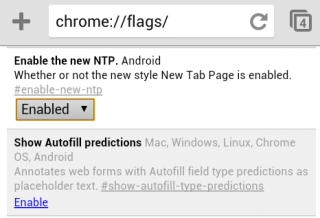
chrome://flags/#enable-new-ntp

Then press Enter, pick "Enabled" from the drop-down below "Enable the new NTP" and tap "Relaunch Now" at the bottom of the window to restart the browser.


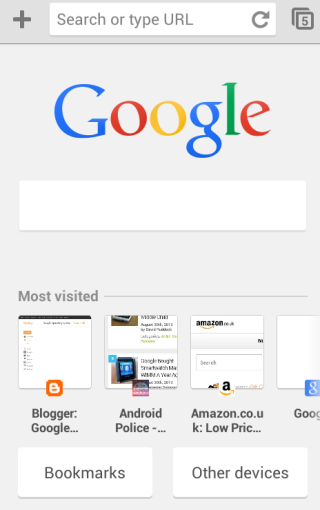
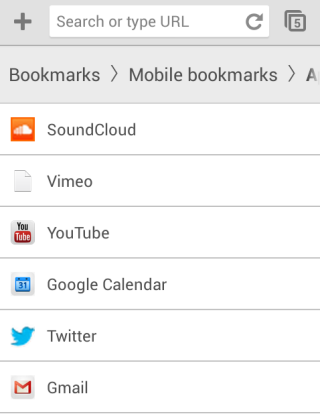
The updated new tab page no longer shows 3 sections. You only get a big Google logo, a search box that points you to the browser's omnibox, a list of the most visited pages and 2 buttons for bookmarks and tabs from other devices. Both buttons open new pages: the bookmarks page has a different interface (it's now a list instead of a grid), while the "other devices" page looks the same.


Chrome's blog informs that some Chrome Beta users might see the new interface automatically. "We've tested this New Tab page with a search bar on desktop and now want to bring the benefits, including a faster load time, to mobile as well. While you can search straight from the Omnibox in Chrome, we realized many users continue to visit their search engine's homepage before searching, so we wanted to make it faster for those users to search. We're always thinking about how to save milliseconds from every search you perform, and we hope this new feature will save you time on-the-go."
If the new interface has been enabled automatically, you can use the same instructions to disable it. Just pick "disabled" instead of "enabled".
The updated new tab page has some advantages: it loads quickly, it's consistent and it looks nice. Unfortunately, bookmarks and the list of tabs from other devices load in separate pages and you can no longer see them automatically when you open a new tab. I created a folder with mobile apps I frequently use and this folder used to be displayed when opening a new tab. This feature is no longer available in the new interface. Unlike the desktop Chrome, the mobile Chrome doesn't support extensions and you can't customize the new tab page.

This "baby" new tab page could be useful to help users discover the omnibox and use it to search the web, but what happens when they realize that the big search box is redundant? And what about the people who already used the omnibox?

Add Shortcuts to Web Apps in Chrome for Android

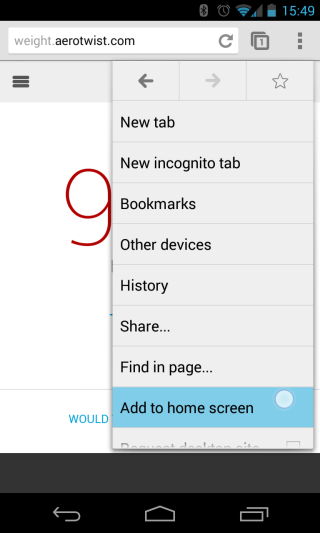
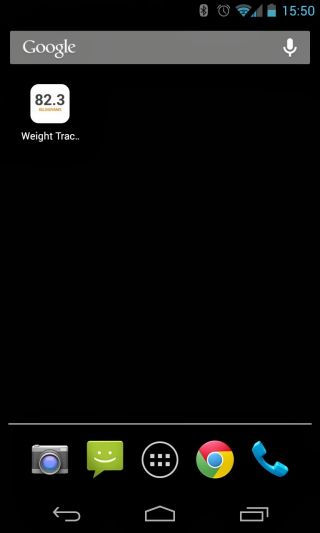
The latest release of Chrome Beta for Android lets you add to the home screen a shortcut to the page you're currently visiting. Until now, you had to bookmark the page, go to the new tab page, long tap the bookmark and select "add to home screen". If you use the latest Chrome Beta, you can open the Chrome menu and tap "add to home screen".

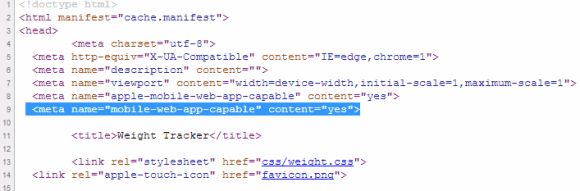
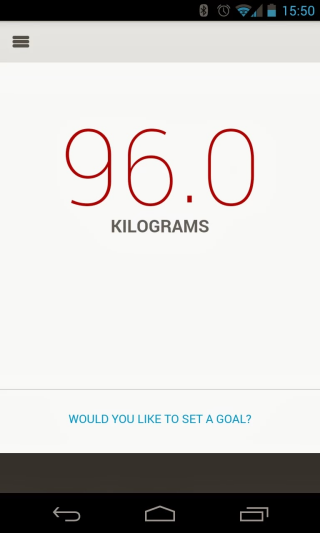
There's even a bonus feature: "Sites launched in this way will open in a normal Chrome for Android window, unless they include the mobile-web-app-capable meta tag. Those sites will instead open in a special fullscreen Chrome for Android window that doesn't display tabs, buttons, menus, or the Omnibox. Try adding a shortcut to weight.aerotwist.com to see this in action."


This is a good news for web apps fans and it's nice to see that a feature that was available in iPhoneOS 1.x finally finds its way to the mobile Chrome. Unfortunately, Chrome for iOS won't add a similar feature because third-party iOS apps can't add shortcuts.

Another new feature integrates Chrome with Google Wallet. "requestAutocomplete() makes it easier for users to fill out online forms by offering web developers programmatic access to the browser's autocomplete information (with the user's explicit permission). For this first release, we've made it work for web payments. On sites with requestAutocomplete(), users will be able to either use their existing payment data stored with the browser or enter new details through a browser-provided interface." This works in Chrome Beta for Android, Windows, and Chrome OS.

Remotely Lock Android Devices

Android Device Manager now lets you lock your Android devices remotely, in addition to ringing devices and erasing data. It's a clever feature: click "Lock" and Google asks you to enter a new password for locking your device. No matter which screen lock feature you use, Google will switch it to "password" and lock your devices using the password you've entered.

This only works if your phone or tablet is online and you've checked "Allow remote lock and factory reset" in the Google Settings app that's installed by Google Play Services. If your device is offline, it'll be locked once it's back online.


It's interesting to see that Android Device Manager doesn't use Google Play branding and it's available at google.com/android/devicemanager. The service has a generic name which suggest that it could add other features not related to finding your phone. For example, it could let you backup your data online, manage your apps or check your notifications. Android Device Manager's codename is Google Nova, while the service name is "androidconsole".

{ via Android Police }

Google Wallet for Android - Widely Available, Still Limited

Google Wallet's Android app was available in the Play Store, but not many people could install it. The app was limited to Sprint and a few small US carriers, Nexus devices and a few other phones. Verizon, AT&T and T-Mobile blocked the app because they work on a competing payment system called Isis.

Google announced that the app is now available for any Android device in the US running Gingerbread or a more recent Android version. "The updated app helps you easily send money on the go, store all your loyalty cards, save money through offers, and view all your Google Wallet activity - all in one place."

The Google Wallet added the feature that was available in Gmail: sending money to other people in the US using their email addresses. The Gmail feature is gradually rolling out, but you can manually enable it by using the Wallet app to send money. You can also add your loyalty cards by scanning the barcode or by entering the card number.

"In addition to your loyalty cards, you can easily carry and use your offers with the Google Wallet app. No matter where you've found your offer - in the Google Maps app, Google Search, Google+ or Google Offers, they're visible and redeemable in your Wallet app at checkout. And later this week, you'll also be able to save offers on select merchant and couponing sites such as Valpak."


While you can install the app on any Android 2.3+ device in the US, you need an eligible device that supports NFC to tap and pay in of the many Wallet-enabled US stores. There are only 29 devices that support this feature and they're still limited to Sprint and small carriers like MetroPCS, US Cellular, Virgin Mobile and Boost Mobile.

So not much has changed: the main functionality of the app is not available if you use 3 of the biggest US carriers, but there are some new features that don't require NFC and work on any device.

This will probably increase Google Wallet's adoption. Until now, the app has been installed less than 10 million times.

Google Keyboard Themes

If you use the stock Android keyboard, which is also available in the Play Store, you can change the look and feel of the keyboard. Google Keyboard has a few themes you can choose, but they're not available in the settings.

Here's a quick way to pick a different theme, assuming your device runs Android 4.0 or later:

1. you first need an application that lets you create shortcuts to app activities. Some apps that let you do that: Nova Launcher and Apex Launcher, probably the best Android launchers. The following instructions assume you've installed Nova Launcher or Apex Launcher, but you can also use simple apps like Activity Getter.

2. long press the homescreen and pick "shortcuts" and then "activities".


3. scroll to the Google Keyboard entry, expand the list of activities and pick "Android keyboard debug settings".


4. you'll create a shortcut for this activity. Tap the new shortcut and you should see this settings page:


5. tap "Keyboard theme" and pick one of the themes: Basic, Basic (High Contrast), Stone (normal), Stone (bold), Gingerbread. IceCreamSandwich is the default theme.


Basic:


Stone (normal):


Gingerbread:


6. use the shortcut you've created to change the theme.

{ via Android Police }