Showing posts with label Google Chrome. Show all posts

Chrome Download Tips

These features aren't new, but they're pretty useful and they might help you become more productive when you download files in Google Chrome.

1. Do you want to open a file immediately after Chrome downloads it? You don't have to wait, just click the file in the download bar and you should see something like "opening in X minutes".


2. If you always want to open certain files after Chrome downloads them, click the arrow icon and check "always open files of this type". You can use this for .mp4 files or .torrent files, for example.


3. How to move to the desktop a file you've just downloaded? Just drag it from the download bar and drop it onto your desktop.

4. Some files open directly in Chrome: PDF documents, MP4 videos, MP3 songs. How to download them? Use a keyboard shortcut: Ctrl+S or Command-S for Mac. Another option is to right click and select "save as". You can also right click the link to the file and select "save link as".

5. Don't worry about closing the Chrome window accidentally while downloading some files. Chrome shows a warning: "download in progress".


6. Manage your downloads by clicking "Downloads" in the Chrome or pressing Ctrl+J (Command-J for Mac). Use the search box to find a file you've downloaded last month, right-click the URL and you can copy it, click "Show in folder" to locate the file. You can also clear all the downloads.

OK Google in Desktop Chrome

Google Voice Search works in Chrome for desktop, not only in Android and iOS. Just click the microphone icon from the search box and you can tell Google what do you want to know, assuming that you have a microphone.

Now you can bypass the microphone icon and use the hotword "OK Google" when you're using Google search or the new tab page. You need to install this extension first.


"Chrome will listen for you to say 'Ok Google' and then send the sound of the next thing you say, plus a few seconds before, to Google," informs the options page. By default, Google stops listening after 5 minutes to reduce battery consumption on a laptop.

Hotword detection works offline and doesn't send the recording to Google's servers until you say "OK Google". You need to open a Google search page or go to the new tab page first, assuming that you have the updated new tab page which uses the Google homepage. The extension only works for google.com, not for other Google domains:


You can tell if Google is listening by checking the microphone icon from the search box:


Now Google handles Voice Search queries differently. In addition to providing voice feedback and using the previous query for disambiguation, Google now changes your query and removes unnecessary word. For example, if you tell Google "show me some Brad Pitt movies", Google will show results for [Brad Pitt movies].

Chrome's Predictors Page

Chrome has a lot of fascinating features you'll probably never use. Tony Hirst spotted one: open a new tab, type chrome://predictors in the omnibox and press Enter. This page shows some cool stats about the characters you've typed in the omnibox and the URLs you've selected.

For example, if you usually type "y", Chrome autocompletes the URL to youtube.com and you press Enter, you'll find this association in the table. There are also 3 values: hit count (how often you type those characters), miss count (how often you pick a different suggestion) and confidence score = hit_count/(hit_count+miss_count). Check "Filter zero confidences" to remove entries with a 0 confidence score. Green entries have a 1 confidence score, which means that the text is always associated with the URL.


You can find all the internal Chrome pages by going to chrome://chrome-urls/. For example, chrome://view-http-cache/ shows a list of all the URLs requested by the browser, chrome://plugins/ lets you see the plug-ins that are available in Chrome, chrome://components/ shows a list of components like Pepper Flash and Portable Native Client, which can be independently updated, chrome://flags/ shows a list of experimental features you can enable, while chrome://net-internals/ is a very advanced network logging and diagnostic tool.

{ Screenshot licensed as Creative Commons Attribution by Tony Hirst. }

Folders in Chrome's App Launcher

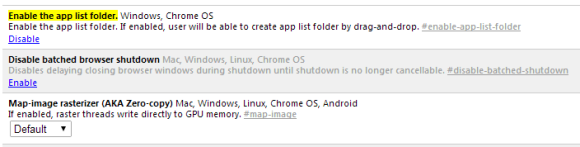
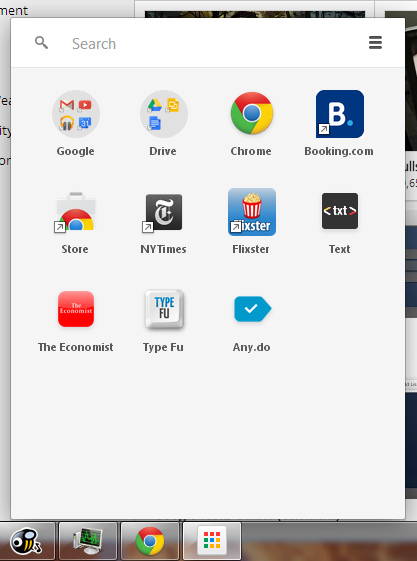
Chrome's latest Dev channel release lets you create folders in the app launcher. If you use Chrome 33 (Dev, Canary) or Chromium 33 for Windows, you can paste this in the address bar:

chrome://flags/#enable-app-list-folder

Then click "Enable" next to "Enable the app list folder" and then click the "Relaunch now" button at the bottom of the page to restart the browser and enable the experimental feature.


"If enabled, user will be able to create app list folder by drag-and-drop," informs Google. It works just like in Android: drag one app on top of another to create a folder, then drag other apps to the folder.


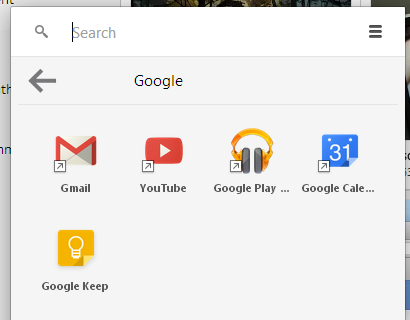
Here's the Google folder from the screenshot above:


It's a simple feature that lets you organize your apps and reduce clutter. Unfortunately, it doesn't work well, at least not for me. After creating the folders, Chrome quickly removed them. Maybe it has something to do with syncing or maybe there are other bugs. It's an experimental feature, so I can't complain.

"These experimental features may change, break, or disappear at any time. We make absolutely no guarantees about what may happen if you turn one of these experiments on, and your browser may even spontaneously combust. (...) Please proceed with caution."

{ Thanks, Silviu. }

Chrome for Windows, Limited to Web Store Extensions

Now that Chrome is very popular, many applications bundle Chrome extensions. I've recently installed a security suite from Kaspersky, which bundled 5 Chrome extensions. Chrome's menu shows notifications if there are extensions added by other apps, so the extensions are not installed automatically.

When Chrome added support for extensions, any app could install them automatically and you could easily install .crx files from any site. Google changed this and made it more difficult to install extensions outside the Chrome Web Store.


Apparently, there are some Windows applications that found some loopholes and bypassed Chrome's security features, so Chrome's engineers decided to block almost all Chrome extensions from other sources than the Chrome Web Store.


From the Chromium blog:

"Many services bundle useful companion extensions, which causes Chrome to ask whether you want to install them (or not). However, bad actors have abused this mechanism, bypassing the prompt to silently install malicious extensions that override browser settings and alter the user experience in undesired ways, such as replacing the New Tab Page without approval. Since these malicious extensions are not hosted on the Chrome Web Store, it's difficult to limit the damage they can cause to our users. As part of our continuing security efforts, we're announcing a stronger measure to protect Windows users: starting in January on the Windows stable and beta channels, we'll require all extensions to be hosted in the Chrome Web Store."


There are some exceptions to this rule: developers and power users will still be able to install unpacked extensions and business users will still be able deploy extensions. Everyone else will have to install extensions from the Chrome Web Store, where extensions have to comply with Google's terms and conditions and where users can rate extensions and post reviews.

While this new rule is limited to extensions and Chrome for Windows, it's interesting to notice that Chrome is closer to the walled garden approach from iOS than the more open Android style. Even though Android has bigger security issues than Chrome, it still allows you to install APK files from any site, so you can even use third-party app stores. Google's Android team chose to disable this feature by default and to also add a tool that checks the files you install, while the Chrome team increasingly limited the support for extensions installed outside the Store.

Chrome Web Store is a great place, but not all extensions belong there. Some break Google's terms by allowing you to download YouTube videos, download music files from services like Grooveshark or allow you to use Pandora outside US. From the store's policies: "we don't allow products or services that facilitate unauthorized access to content on websites, such as circumventing paywalls or login restrictions. We also don't allow products or services that encourage, facilitate, or enable the unauthorized access, download, or streaming of copyrighted content or media". No nudity, no online gambling, no gratuitous violence, no hate speech and the rules can always change to include other restrictions.

Fortunately, the developer option will still work: replace the crx extension with zip, extract the files to a new folder, go to the Chrome extensions page, enable developer mode, click "load unpacked extension" and select the folder you've created.

Chrome's New Tab Page Shows Static Doodles

The last time I wrote about Chrome's updated new tab page, I complained about the animated doodles that distract you every time you open a new tab. Since Chrome replaced the new tab page with Google's homepage, you also get the doodles, including those that are animated or interactive.

Here's what I asked Peter Kasting, from the Chrome team: "If nothing can be done about the new interface, my only request would be to show a static version of the animated doodles and click a button to start the animation. That would be a big improvement. It's really annoying to see the same animation over and over again when opening a new tab page."

The good news is that Google did exactly that. The updated new tab page now shows a static version of the doodle and you need to click a "play" button to start the animation.

Customize Google's App Launcher

Google's navigation menu is still not customizable. The app launcher interface allows Google to add many cool features like reordering apps, removing them or adding new ones, but for now they're not available.

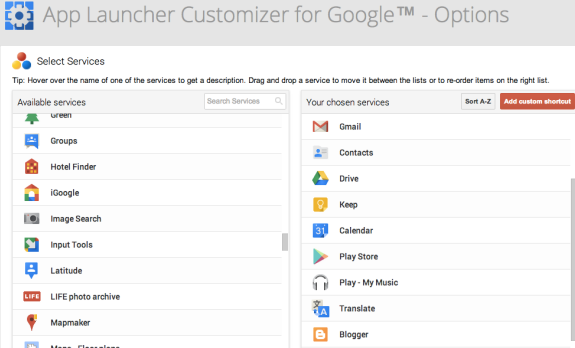
Carlos Jeurissen released a Chrome extension that lets you customize the app launcher. You can select from a very long list of Google services, including Google Scholar, Google Play Music, Google Keep, Chrome Web Store. You can also reorder the services or remove the Google products you don't use often. The upgraded launcher has up to 5 columns and as many rows as you want, but I suggest to pick less than 20 services.


"In the settings page, you can define which shortcuts you want to display in the app launcher via drag and drop (hold your mouse on a shortcut in the left list, drag it to the right list, and release your mouse). The settings page also allows you to filter the 175+ Google shortcuts."


My favorite feature is that settings are synced, so you can use other computers and see the same Google menu in Chrome. You may need to reload the new tab page after changing the menu, since Google caches it.

There's also an option to add custom shortcuts, so you can link to non-Google web apps like Dropbox, Vimeo, Twitter, or Imgur.

{ Thanks, Florian K. }

Enable the Updated New Tab Page in Chrome for Android

If you like Chrome's updated new tab page for the desktop and you have an Android device, you can enable a similar new tab page in Chrome Beta for Android.


You first need to install Chrome Beta for Android if you don't have it already, then open a new tab and type this in the address bar:

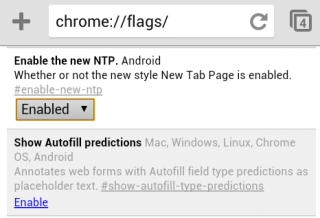
chrome://flags/#enable-new-ntp

Then press Enter, pick "Enabled" from the drop-down below "Enable the new NTP" and tap "Relaunch Now" at the bottom of the window to restart the browser.


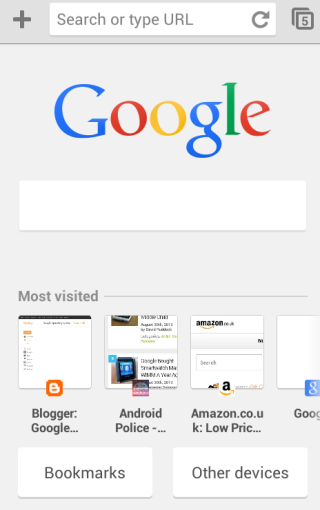
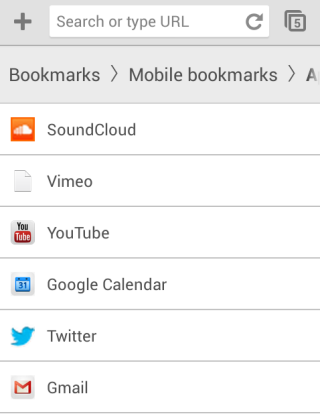
The updated new tab page no longer shows 3 sections. You only get a big Google logo, a search box that points you to the browser's omnibox, a list of the most visited pages and 2 buttons for bookmarks and tabs from other devices. Both buttons open new pages: the bookmarks page has a different interface (it's now a list instead of a grid), while the "other devices" page looks the same.


Chrome's blog informs that some Chrome Beta users might see the new interface automatically. "We've tested this New Tab page with a search bar on desktop and now want to bring the benefits, including a faster load time, to mobile as well. While you can search straight from the Omnibox in Chrome, we realized many users continue to visit their search engine's homepage before searching, so we wanted to make it faster for those users to search. We're always thinking about how to save milliseconds from every search you perform, and we hope this new feature will save you time on-the-go."

If the new interface has been enabled automatically, you can use the same instructions to disable it. Just pick "disabled" instead of "enabled".

The updated new tab page has some advantages: it loads quickly, it's consistent and it looks nice. Unfortunately, bookmarks and the list of tabs from other devices load in separate pages and you can no longer see them automatically when you open a new tab. I created a folder with mobile apps I frequently use and this folder used to be displayed when opening a new tab. This feature is no longer available in the new interface. Unlike the desktop Chrome, the mobile Chrome doesn't support extensions and you can't customize the new tab page.

This "baby" new tab page could be useful to help users discover the omnibox and use it to search the web, but what happens when they realize that the big search box is redundant? And what about the people who already used the omnibox?

Add Shortcuts to Web Apps in Chrome for Android

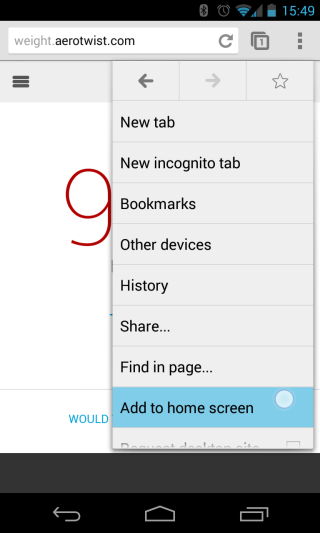
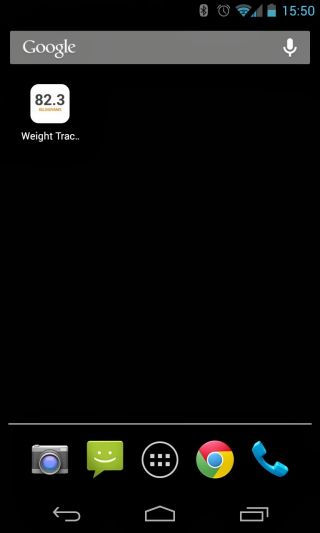
The latest release of Chrome Beta for Android lets you add to the home screen a shortcut to the page you're currently visiting. Until now, you had to bookmark the page, go to the new tab page, long tap the bookmark and select "add to home screen". If you use the latest Chrome Beta, you can open the Chrome menu and tap "add to home screen".

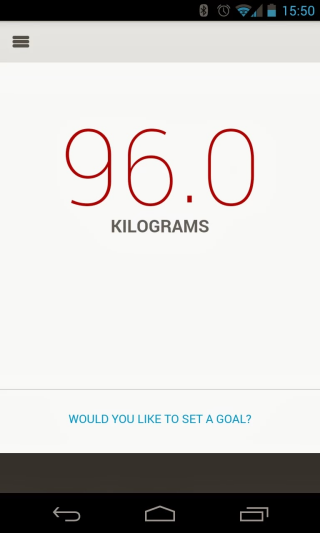
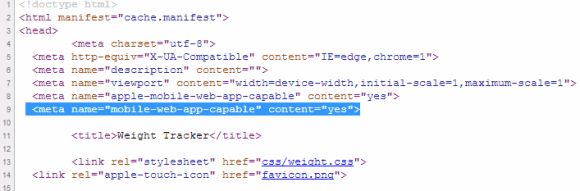
There's even a bonus feature: "Sites launched in this way will open in a normal Chrome for Android window, unless they include the mobile-web-app-capable meta tag. Those sites will instead open in a special fullscreen Chrome for Android window that doesn't display tabs, buttons, menus, or the Omnibox. Try adding a shortcut to weight.aerotwist.com to see this in action."


This is a good news for web apps fans and it's nice to see that a feature that was available in iPhoneOS 1.x finally finds its way to the mobile Chrome. Unfortunately, Chrome for iOS won't add a similar feature because third-party iOS apps can't add shortcuts.

Another new feature integrates Chrome with Google Wallet. "requestAutocomplete() makes it easier for users to fill out online forms by offering web developers programmatic access to the browser's autocomplete information (with the user's explicit permission). For this first release, we've made it work for web payments. On sites with requestAutocomplete(), users will be able to either use their existing payment data stored with the browser or enter new details through a browser-provided interface." This works in Chrome Beta for Android, Windows, and Chrome OS.

Restrict Chrome's Omibox Suggestions to Web Searches

What to do if you only want to see web search suggestions in Chrome's omnibox, not suggestions from Google's top results, your bookmarks, your browsing history or previously typed URLs. Type ? in the omnibox and then start typing your query. You can also use these keyboard shortcuts: Ctrl+K or Ctrl+E for Windows and Linux, ⌘-Option-F for Mac.


Chrome will still show suggestions from your previous searches. If you use this trick in the incognito mode, Chrome will only show suggestions from your search history.

Add a Keyboard Shortcut for Chrome's App Launcher

I'm not sure why Chrome's app launcher doesn't have a keyboard shortcut, but it's pretty easy to add one. For Windows XP, right-click the desktop shortcut for Chrome App Launcher and select "Properties", go to the "Shortcut key" field and enter a keyboard shortcut. If you use Windows 7 or 8, press Shift while right-clicking the colorful grid icon from the taskbar, select "Properties", go to the "Shortcut key" field and enter a keyboard shortcut. I picked Ctrl+Shift+A.


Now I can just press Ctrl+Shift+A and the launcher will show up. I can type a Google query, the first letters from a Chrome app or just use the arrow keys to pick an app.


Google now even shows suggestions from the Chrome Web Store, so you can quickly install apps without visiting the store. I wouldn't recommend doing that, unless you really trust the app. For example, you can search for "gmail" and quickly install Gmail Offline.

Chrome's System-Level Installer, Now Default

When Chrome was released 5 years ago, many people were surprised to see that the browser didn't install in the Program Files folder. Chrome was Windows-only back then and Google wanted to make sure that users can install Chrome, even if they don't use admin accounts. Per-user installs worked well, but Google had to create a separate system-level MSI installer for enterprise.

Now it looks like Chrome has a smart Windows installer that combines both approaches. The setup file tries to install Chrome in the Program Files folder and switches to the AppData folder if it fails.


"We did change the download page to install system-level by default (and fall back to user level if that fails or the user says "no" to the UAC prompt). Installing in AppData was never a security measure, it was for convenience to make sure people could install Chrome even without admin rights. Our data shows that *preferring* a system level (Program Files) install with a fallback to user level improves the install success rate," said Mark Larson from Google.

Apparently, this is a feature launched last year, but I haven't noticed it until today, when I had to reinstall Chrome because of this error: "Update failed (error: 7) An error occurred while checking for updates: This computer already has a more recent version of Google Chrome. If the software is not working, please uninstall Google Chrome and try again."


Chrome's help center still recommends to use an alternate installer "to install Google Chrome for all user accounts on a Windows computer. By doing so, you'll replace all other versions of Chrome that may already be installed on your computer for other user accounts." For Mac, "you can install Chrome for all user accounts on your computer if you're signed in as an administrator."

Google's Reverse Image Search, Now in Chrome

Google's reverse image search feature is about to become more popular, now that you can easily use it in Chrome 30+. You no longer have to install an extension, just right-click an image and click "search Google for this image".

"Search by image allows you to do a reverse image search and discover all sorts of content that's related to a specific image. For example, search using a picture of your favorite band and see search results that might include similar images, webpages about the band, and even sites that include the same picture," explains Google.


It's interesting to notice that Google uploads the image, instead of using the URL. Maybe Google wanted to make sure that you'll always get some results: not all the URLs are publicly accessible (for example: Gmail's image attachments).

Reverse image search also works for modified versions of an image, so you can use it to find more information about an image, other sites that include the image, the original source of an image. You can also use TinEye, a similar reverse image search engine.

Chrome Font Finder

You're reading a web page and you're suddenly wondering: what font is that?


You can check the source code or select some text, right-click and pick "inspect element". You'll probably find a list of fonts and you won't be able to tell which one is actually used.

Chrome added a feature that tells you the name of the font that's used. This feature is available in Chrome 31+, so you can try it if you've switched to the Dev Channel or you use Chrome Canary. Right-click the text, pick "inspect element", switch to the "computed" tab, scroll down and you'll see "a summary of the typeface(s) used for that element". Paul Irish says that it "works great with Google Webfonts, Typekit, local fonts, @font-face typefaces, unicode glyphs, and all other interesting font sources."


As you can see, it's Helvetica, not Arial. No need to use WhatTheFont or WhatFontIs.

For some reason, this didn't work well for web fonts.


{ via Kristian Serrano. }

Chrome's New Tab Synergy

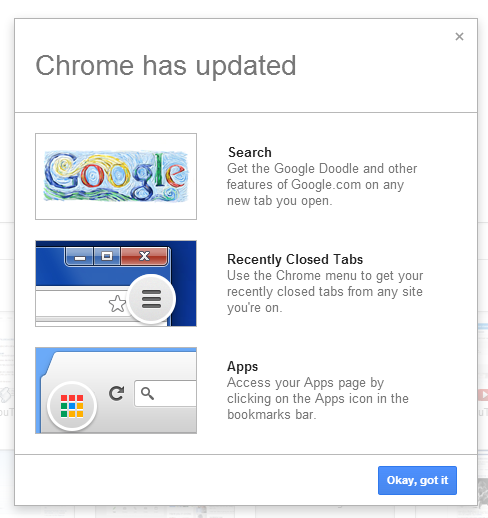
Chrome shows a new version of the welcome screen for the updated new tab page. Instead of "changes to the new tab page", you'll see "Chrome has updated". It looks like Google wanted to synchronize 4 important changes:

1. the new Google navigation interface
2. the updated new tab page
3. Chrome's app launcher
4. the new Chrome apps


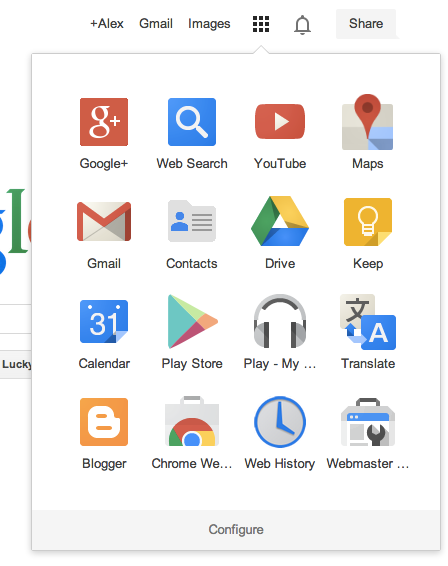
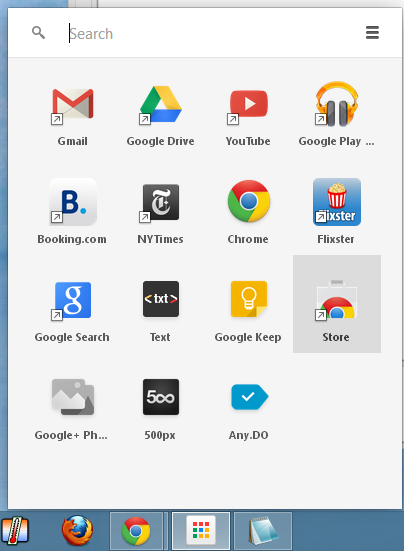
There's an interesting synergy that deserves some explanations. Google's new drop-down menu from the homepage and search results pages looks just like the app launcher, but it only links to Google apps and you can't customize it. Chrome's app launcher was first available in Chrome OS and it's now added to the regular version of Chrome. It includes the apps that were previously available in the new tab page, but it's optimized for a new breed of apps that work offline and look just like native apps. They can be launched from the operating system's taskbar, use APIs that integrate with the hardware, open links in a browser tab. Install any app from this page to enable the app launcher.


The old bookmark apps have a small arrow just like regular Windows shortcuts and open in a new Chrome tab, the new apps don't have the small arrow and open in a new chromeless window.

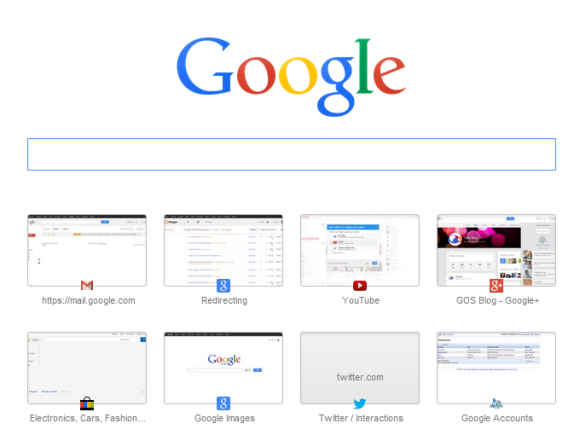
Chrome's new tab page has a different goal: teach people to use the omnibox (the unified address bar and search box). Many people type google.com and use the search box from Google's homepage to search the web. Google decided to replace the new tab page with a modified Google homepage that uses the omnibox instead of the regular search box. "While you can search straight from the omnibox in Chrome, we've found that many people still navigate to their search engine's home page to initiate a search instead. The goal is to save people time by helping them search and navigate the web faster," explained Google.


To sum up: the new Chrome apps are no longer bookmarks to websites and no longer open in Chrome tabs, so they're moved outside of the browser. There's a new bookmark called Apps that links to chrome://apps, where you can still find the old apps list. The updated new tab page is an educational feature that tries to simplify the search workflow for regular users.

Advanced users probably don't need it, so here are two ways to tweak the updated new tab page (Google might remove them in the future):

1. How to replace the updated new tab page with a local version that doesn't load Google's homepage and doesn't show doodles? Paste this in a new tab:

chrome://flags/#enable-local-only-instant-extended-api

and click "Enabled" in the drop-down below "Enable local-only Instant Extended API", then click the "Relaunch Now" button at the bottom of the page to restart the browser.

2. How to go back to the old new tab page? Paste this in a new tab:

chrome://flags/#enable-instant-extended-api

and click "Disabled" in the drop-down below "Enable Instant Extended API", then click the "Relaunch Now" button at the bottom of the page to restart the browser.

You can read between the lines and notice how Chrome adds more and more operating system features: it has its own apps, a "start menu" replacement, a notification system, a remote printing feature, support for multiple users and a guest mode.

Chrome to Gradually Drop Support for NPAPI Plug-ins

10 years ago, browsers were a lot less powerful and you had to install plug-ins to watch videos, play games, open PDF files. Applications like QuickTime, RealPlayer, Windows Media Player, Adobe Reader, Java installed plug-ins that added missing features. Now browsers can play audio files and video files without plug-ins, some of them include PDF viewers, many of them render interactive 3D graphics natively. NPAPI plug-ins are no longer that necessary, they have plenty of security issues and the NPAPI plug-in architecture from the Netscape era is now outdated.


Google addressed some of the NPAPI issues in Pepper and bundled a Pepper version of the Flash plug-in with Chrome. Pepper is also used by Native Client and the PDF viewer.

The next step: Chromium's blog announced that the NPAPI support will be gradually dropped next year. "NPAPI isn't supported on mobile devices, and Mozilla plans to block NPAPI plug-ins in December 2013. Based on anonymous Chrome usage data, we estimate that only six NPAPI plug-ins were used by more than 5% of users in the last month. (...) Starting in January 2014, Chrome will block webpage-instantiated NPAPI plug-ins by default on the Stable channel. To avoid disruption to users, we will temporarily whitelist the most popular NPAPI plug-ins that are not already blocked for security reasons:" Silverlight, Unity, Google Earth, Google Talk and Facebook Video. Java is already blocked by default for security reasons. "In the short term, end users and enterprise administrators will be able to whitelist specific plug-ins. Eventually, however, NPAPI support will be completely removed from Chrome. We expect this to happen before the end of 2014, but the exact timing will depend on usage and user feedback."

A simplified version of Google Earth is now available in the new Google Maps, while the Google Talk plug-in will no longer be necessary in Chrome when Google Hangouts switches to WebRTC. Silverlight is mainly used for streaming premium video by sites like Netflix, but the DRM support for HTML5 video will change this.

Some Chrome extensions include NPAPI plug-ins. Google will no longer accept new Chrome extensions with NPAPI plug-ins starting today and will unpublish these extensions from the Chrome Web Store in September 2014 if developers don't remove the NPAPI plug-ins.

"There are several alternatives to NPAPI. In cases where standard web technologies are not yet sufficient, developers and administrators can use NaCl, Apps, Native Messaging API, and Legacy Browser Support to transition from NPAPI. Moving forward, our goal is to evolve the standards-based web platform to cover the use cases once served by NPAPI," informs Google.

It will be interesting to see if Google will actually drop NPAPI support next year. There are still many sites that rely on plug-ins and some of them are no longer updated.

To see a list of the plug-ins you use in Chrome, open a new tab and paste chrome://plugins/ in the address bar. Click "Details" to see more information about them (including their type: NPAPI or PPAPI - Pepper). You can also disable plug-ins or check "always allowed".


You'll see at least 4 PPAPI (Pepper) plug-ins that are bundled with Chrome: Flash, PDF Viewer, Native Client and Chrome Remote Desktop Viewer. The list also includes a separate NPAPI version of the Flash plugin that's used by Firefox, Opera, Safari, a Google Update NPAPI plug-in and some other NPAPI plug-ins for software you've installed (Google Talk, Java, iTunes Application Detector, Picasa, Google Earth Plugin).

From the New Tab Page to the Google Homepage

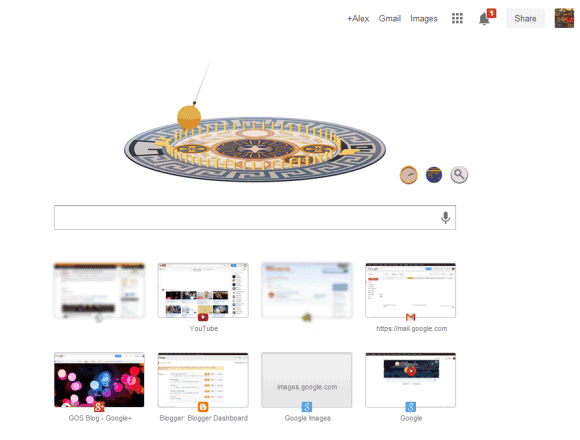
Chrome will replace the new tab page with a simplified version of the Google homepage. Sure, it doesn't have the search button and the footer, but it's the Google homepage. You'll see the app launcher grid, which replaces the black bar, you'll see the Google+ notification and share buttons, you'll see Google doodles.
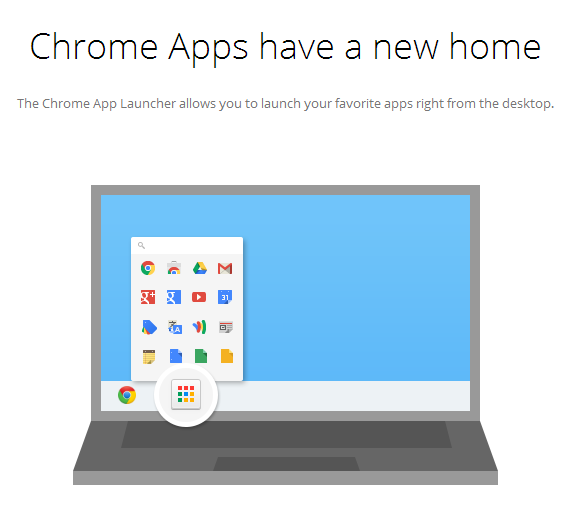
Most of the features of the new tab page have been removed and replaced by a huge Google logo. Chrome apps are in the app launcher, recent tabs are in the Chrome menu.

I've never liked browser homepages, but Chrome's new tab page was really useful. It loaded quickly and had a lot of links to pages you were likely to open. Now it only shows 8 of your frequently visited pages and a fake search box that sends you to the omnibox.


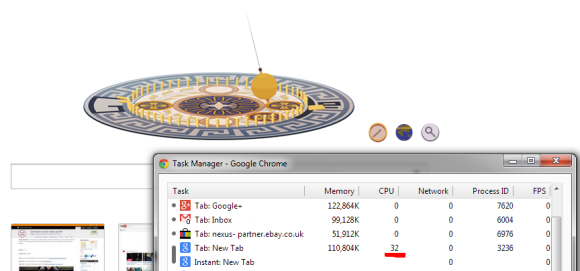
When Google shows an animated doodle, the new tab page shows same the animation and you're forced to see it each and every time you open a new tab. Sometimes the doodle uses a lot of resources:


There are some great extensions that replace the new tab page, but you shouldn't have to use an extension for this. The new tab page should be fast, simple and useful.

Here's a quote from Chromium's site:

"The new tab page is the default starting point for all tabs - it is designed to get the user where they want to go, and is not meant to be an information resource like the user's home page; that is, the new tab page is not intended to be a destination, but rather a jumping-off point to other destinations - we strongly want to avoid cognitive load and distractions for the user, especially those creating new tabs for other purposes."

So it shouldn't include distractions. That's exactly what the Google homepage does and the new tab shouldn't do. Animated doodles, Google+ notifications - all of them are distractions that don't belong in a page you open so often.

For now, I'll switch to the empty new tab page.

Chrome's Offline Dinosaur

A few weeks ago, an engineer from the Chrome team improved the "you are offline" error page by replacing the sad face with a dinosaur. I only get the new version of the page in Chrome Beta for Android, but some people report that it also works in Chrome Dev/Canary. The icon's address is: chrome://theme/IDR_ERROR_NETWORK_OFFLINE.

Chrome's Data Compression Feature in iOS

There's no Chrome Beta for iOS, so you can't enable the data compression proxy. This feature is gradually rolled out and some lucky Chrome users were invited to try it: "You're invited. Join a limited preview of a new feature from Chrome. Save bandwidth and browse more securely."

Here's a video that shows this feature:


If you use Android, you can install Chrome Beta and enable this feature in the settings or use the regular Chrome version and wait until you get an invite.

{ Gracias, Adrià Vilanova Martínez. }

Chrome's People Search

Chrome's app launcher is not just for launching apps. It also has a search box that includes many of the features of the Chrome omnibox. It shows suggestions from your list of apps, your browsing history, Google's top search results and popular queries, instant answers for queries like [10 in in cm].

If you use Chrome Canary or a recent Chromium build, you can also enable people search. This way, the app launcher shows Google+ results, just like the search box from Google.com. To enable this feature, open a new tab, copy and paste this address: chrome://flags/#enable-people-search and click "Enable" below "Enable people search - Enable searching for people directly from the apps list search". Then click the "Relaunch now" button to restart the browser.


Right now, the feature is partially implemented. While Chrome shows the search results from Google+, clicking them doesn't have any effect.

{ Thanks, MickeyJayDee. }