Showing posts with label Tips. Show all posts

Chrome Download Tips

These features aren't new, but they're pretty useful and they might help you become more productive when you download files in Google Chrome.

1. Do you want to open a file immediately after Chrome downloads it? You don't have to wait, just click the file in the download bar and you should see something like "opening in X minutes".


2. If you always want to open certain files after Chrome downloads them, click the arrow icon and check "always open files of this type". You can use this for .mp4 files or .torrent files, for example.


3. How to move to the desktop a file you've just downloaded? Just drag it from the download bar and drop it onto your desktop.

4. Some files open directly in Chrome: PDF documents, MP4 videos, MP3 songs. How to download them? Use a keyboard shortcut: Ctrl+S or Command-S for Mac. Another option is to right click and select "save as". You can also right click the link to the file and select "save link as".

5. Don't worry about closing the Chrome window accidentally while downloading some files. Chrome shows a warning: "download in progress".


6. Manage your downloads by clicking "Downloads" in the Chrome or pressing Ctrl+J (Command-J for Mac). Use the search box to find a file you've downloaded last month, right-click the URL and you can copy it, click "Show in folder" to locate the file. You can also clear all the downloads.

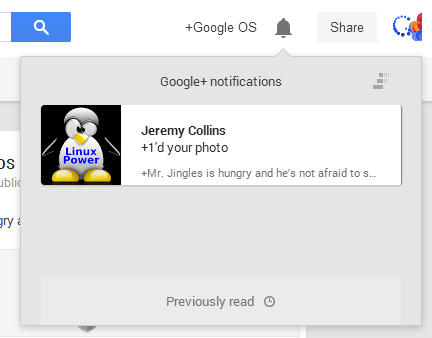
Keyboard Shortcuts for Google+ Notifications


The Google+ notifications box has a few keyboard shortcuts you might find helpful. Here are some of them:

* up/down arrow keys help you select a notification from the list. Notice the blue line, which shows the currently selected notification. After opening a notification, use the same arrow keys to scroll.

* Enter (Return for Mac) opens the notification you've selected. You can also use o

* press the down arrow key after the last notification and then press Enter to open the list of previously read notifications

* right/left arrow keys let you go to the next/previous notification. You can also use j/k

* u - go back to the list of notifications or to the main screen

* d - mark as read the notification you've selected

* Esc closes the notifications box.

Unfortunately, there's no shortcut that opens the Google+ Notifications box, so you still need to click the bell icon. How to quickly read your notifications? Press the down arrow key, then press Enter and go to the next notification using the right arrow key.

Sometimes Page Up/Page Down and Space/Shift+Space work, but only after you use the arrow keys. If you find other keyboard shortcuts, please let me know in the comments.

Google+ also has a list of keyboard shortcuts.

Move Gmail Attachments to Google Drive, Save Space

Mail services are inefficient when it comes to storing files because of the MIME encoding overhead. "This encoded size is the actual size of the message as it travels over the Internet and is always larger than the raw size because of the MIME overhead and because binary attachments are generally encoded using base64 encoding.  Base64-encoded files are usually about 137% the size of the original files," says Erik Kangas.

If you want to use Google's storage more efficiently, you can find some old messages with large attachments, save the attachments to Google Drive and delete the messages. To keep the messages, you can forward them to yourself, remove the attachments, add Google Drive links and remove the original messages.

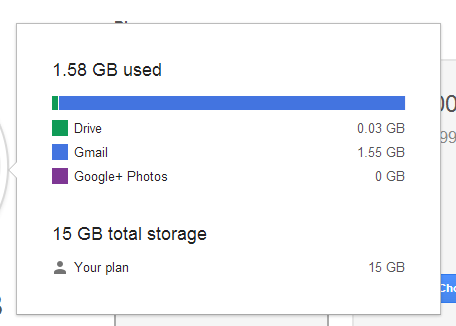
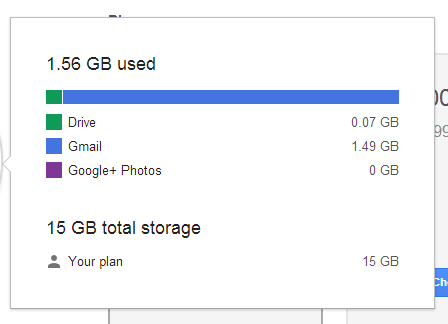
I've tested this by saving 2 FLAC attachments from 2 messages (about 43 MB) to Google Drive and deleting the associated messages from Gmail, including from the trash. Here's what I got:

* 1.58 GB used before moving files to Google Drive:


* 1.56 GB used after moving files to Google Drive:


To find Gmail messages with large attachments, you can use these operators. For example, search for [larger:5M] to find messages larger than 5 MB (that's the total size of the message).

Change the Language of a Google Page

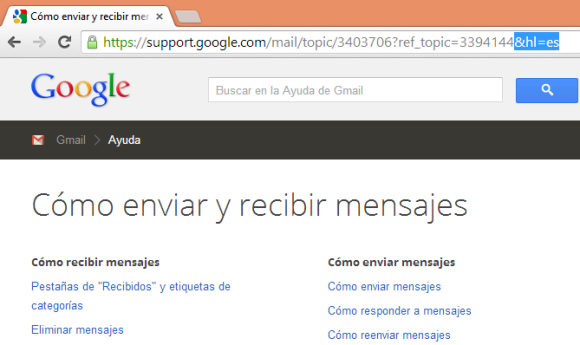
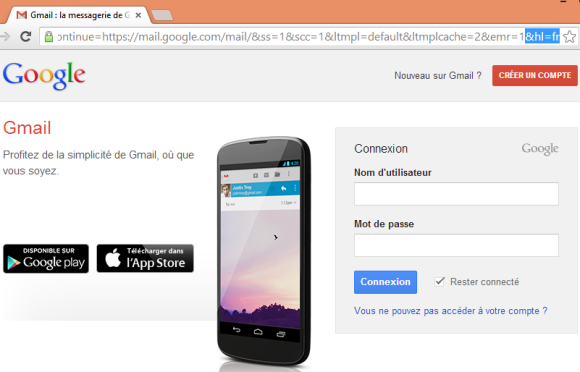
This is a very basic trick that's pretty old, but it still works in almost any Google service. If you want to change the interface language of a Google page, just add:

&hl=LANGUAGE_CODE

or

?hl=LANGUAGE_CODE 

to the URL of the page and press Enter. Replace LANGUAGE_CODE with the code of the language: en for English, fr for French, de for German, ru for Russian, es for Spanish. Here's a list of other language codes.

Google usually tries to detect your language, but sometimes it makes mistakes. A few months ago, I visited Gmail's help center and all the text from the page was in Russian. Fortunately, there's a drop-down that lets you change your language at the bottom of the page, but not all Google services offer this feature.


For some reason, the "hl" parameter doesn't change the interface language in Gmail and Google Drive, while YouTube shows a link that lets you change the language.

This trick only changes the language of the Google page you've opened. To permanently change the language used by Google services, check this page. Services like Gmail, Google Calendar and Google Drive let you change the language in the settings.

Classic Google Maps URL

If you've switched to the new Google Maps desktop interface, you can quickly go back to the classic interface by clicking the gear icon and picking "Classic Maps" or by clicking "Help & Feedback" at the top of the page and picking "Return to classic Google Maps". You'll see a message that asks you if you want to permanently go back to the old interface or temporarily switch.

Another option is to bookmark this URL: Classic Google Maps (https://www.google.com/maps?output=classic). It will always send you to the standard Maps interface and you won't have to open the new interface first.


Why would you switch to the old interface? Maybe you need to use the more advanced directions that let you add more than 2 destinations, maybe you like the terrain/photos/webcam layers or Maps Labs features like the distance measurement tools or the LatLng tooltip, maybe you miss the Pegman icon you could drag and drop to switch to Street View or you want to customize the printing format for directions.

You've probably noticed that the new maps style (with new colors, icons, labels, tooltips) is now also available in the classic Google Maps. If you hide the sidebar, you can make it look more like the new Google Maps.

Tips for Google Bar's App Launcher

Google's new navigation menu is useful for visiting some of the most popular Google services, but did you know that you can still use it to find search results? This only works when you use your browser's search box. For example, you can search for [bogota], click the grid icon and select "YouTube". Instead of sending you to YouTube's homepage, Google's menu uses your query and sends you to YouTube's search results page.

Here's a list of services that show search results: YouTube, Play, Maps, Translate, Books, Shopping and Finance. You can middle-click or Ctrl-click the icons to open pages in a new tab.


Unfortunately, this feature is buggy: if you try another query, the links from the drop-down menu send you to the search results for the first query. That's because the feature doesn't work in the AJAX interface.

Useful tip: you can quickly open Google's list of "even more" services by middle-clicking the grid icon. You can also right-click it and select "open link in new tab".

Another tip: instead of clicking "more", you can scroll down.

Fun fact: Google's code includes icons for some other Google services. One of them is Google Reader. Other services: Google Groups, Google Video, Google Image Search, Google Contacts.


Speaking of Google service icons, you can find more icons here.

Restrict Chrome's Omibox Suggestions to Web Searches

What to do if you only want to see web search suggestions in Chrome's omnibox, not suggestions from Google's top results, your bookmarks, your browsing history or previously typed URLs. Type ? in the omnibox and then start typing your query. You can also use these keyboard shortcuts: Ctrl+K or Ctrl+E for Windows and Linux, ⌘-Option-F for Mac.


Chrome will still show suggestions from your previous searches. If you use this trick in the incognito mode, Chrome will only show suggestions from your search history.

Add a Keyboard Shortcut for Chrome's App Launcher

I'm not sure why Chrome's app launcher doesn't have a keyboard shortcut, but it's pretty easy to add one. For Windows XP, right-click the desktop shortcut for Chrome App Launcher and select "Properties", go to the "Shortcut key" field and enter a keyboard shortcut. If you use Windows 7 or 8, press Shift while right-clicking the colorful grid icon from the taskbar, select "Properties", go to the "Shortcut key" field and enter a keyboard shortcut. I picked Ctrl+Shift+A.


Now I can just press Ctrl+Shift+A and the launcher will show up. I can type a Google query, the first letters from a Chrome app or just use the arrow keys to pick an app.


Google now even shows suggestions from the Chrome Web Store, so you can quickly install apps without visiting the store. I wouldn't recommend doing that, unless you really trust the app. For example, you can search for "gmail" and quickly install Gmail Offline.

Faster Google Maps Navigation

The new version of the Google Maps app for Android made turn-by-turn navigation more cumbersome. Google removed the navigation icon and integrated the navigation feature in the Maps app, instead of using a separate app. The new interface is more difficult to use because it requires more taps and buttons are really small. There are also many missing navigation features: layers, Street View, alternate routes.

Fortunately, the Google Maps app lets you start the navigation mode a lot faster. "Select a place, then tap and hold on the transportation icon. This will automatically open voice guided turn-by-turn GPS navigation and you'll be ready to go," informs Google.


It's not an obvious feature, but it lets you skip 2 screens. You first had to pick a route, see the list of directions and then tap "Start".

This tip also works in the Google Maps app for iPhone and iPad, so it's not limited to Android.

Google Keyboard Themes

If you use the stock Android keyboard, which is also available in the Play Store, you can change the look and feel of the keyboard. Google Keyboard has a few themes you can choose, but they're not available in the settings.

Here's a quick way to pick a different theme, assuming your device runs Android 4.0 or later:

1. you first need an application that lets you create shortcuts to app activities. Some apps that let you do that: Nova Launcher and Apex Launcher, probably the best Android launchers. The following instructions assume you've installed Nova Launcher or Apex Launcher, but you can also use simple apps like Activity Getter.

2. long press the homescreen and pick "shortcuts" and then "activities".


3. scroll to the Google Keyboard entry, expand the list of activities and pick "Android keyboard debug settings".


4. you'll create a shortcut for this activity. Tap the new shortcut and you should see this settings page:


5. tap "Keyboard theme" and pick one of the themes: Basic, Basic (High Contrast), Stone (normal), Stone (bold), Gingerbread. IceCreamSandwich is the default theme.


Basic:


Stone (normal):


Gingerbread:


6. use the shortcut you've created to change the theme.

{ via Android Police }

Use Gmail's New Compose Interface for Replies

When Gmail launched the new compose interface, I wondered why the interface for replying to other messages is different. By default, when you reply to a message or you forward a message, Gmail shows the rich-text editor below the message, just like before.

There are a few ways to make the reply box look like the compose box, so you can open other messages or use Gmail's search feature while replying to a mail.

1. Shift-click the "reply" link or the entire box that includes the message "Click here to Reply or Forward". You can also Shift+click "forward" to open the forwarded message in a pop-out box.


2. Use keyboard shortcuts: Shift+r to reply in a pop-out box, Shift+a to reply to all, Shift+f to forward in a pop-out box.

3. If you've already writing the reply, click the arrow above your reply and pick "Pop out reply".


To go back to the regular interface, minimize the compose box, find this message "You are currently editing your reply in a separate window" and click "Show your draft here."