Showing posts with label Gmail. Show all posts

Google Uses a Proxy to Load Gmail Images

This is one of those features that users will love and marketers will hate (or maybe it's the other way around?). Until now, Gmail didn't display the images from messages sent by people that aren't in your address book if those images had to be loaded from an external site. You had to click "display images below" or "always display images from..." to see the images. This was done to protect your privacy: embedded images could set cookies or include unique IDs and inform those who sent the messages that you've read them or that the email address is active. Many newsletters and spam messages include images.

Google found a way to address this issue: it will display all the images by default, but load them from a proxy server. "Instead of serving images directly from their original external host servers, Gmail will now serve all images through Google's own secure proxy servers. So what does this mean for you? Simple: your messages are more safe and secure, your images are checked for known viruses or malware, and you'll never have to press that pesky 'display images below' link again. With this new change, your email will now be safer, faster and more beautiful than ever," informs Gmail's blog.


"Some senders try to use externally linked images in harmful ways, but Gmail takes action to ensure that images are loaded safely. Gmail serves all images through Google's image proxy servers and transcodes them before delivery to protect you in the following ways: senders can't use image loading to get information like your IP address or location, senders can't set or read cookies in your browser, Gmail checks your images for known viruses or malware. In some cases, senders may be able to know whether an individual has opened a message with unique image links," mentions Gmail's help center.

If the images are loaded using a proxy, the external server still receives a request and the sender can find if you've read the message. After all, this could actually be a good news for marketers: they may not get your IP address, but they'll know if you've read the message.

Here's some text that has been removed from the Gmail help article:

When you receive an email that contains externally linked images, Gmail usually doesn’t display the images automatically. This behavior is designed to help protect your privacy; if we displayed the images automatically, it could potentially allow the sender of the email to see that the images are being fetched, and therefore know when you've read their message. But, if someone you've sent email at least twice sends you a message with images in it, you'll see the image by default (because the people in this group are likely people you know and trust).

You can still choose to manually authorize images by selecting "Ask before displaying external images" in Gmail's settings. This is especially useful if you have a slow Internet connection or you want to be extra safe.

So when will you get the new feature? "This new improvement will be rolling out on desktop starting today and to your Gmail mobile apps in early 2014."

Export Gmail and Google Calendar Data

Google Takeout now lets you export your calendars and it will soon add a similar feature for Gmail. The calendar exporting feature is not new - you could find it in the Google Calendar settings, but it's nice to see that Google Takeout gets more comprehensive and adds support for new services.

The Gmail exporting feature is completely new and it will be gradually released next month. It will let you download a big MBOX file you can import in mail clients like Outlook, Thunderbird or Apple Mail. You can also use this feature to backup your Gmail messages and read them offline.


"You can download all of your mail and calendars or choose a subset of labels and calendars. You can also download a single archive file for multiple products with a copy of your Gmail, Calendar, Google+, YouTube, Drive, and other Google data," informs Google.

Move Gmail Attachments to Google Drive, Save Space

Mail services are inefficient when it comes to storing files because of the MIME encoding overhead. "This encoded size is the actual size of the message as it travels over the Internet and is always larger than the raw size because of the MIME overhead and because binary attachments are generally encoded using base64 encoding.  Base64-encoded files are usually about 137% the size of the original files," says Erik Kangas.

If you want to use Google's storage more efficiently, you can find some old messages with large attachments, save the attachments to Google Drive and delete the messages. To keep the messages, you can forward them to yourself, remove the attachments, add Google Drive links and remove the original messages.

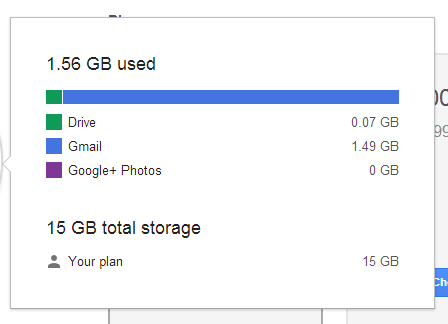
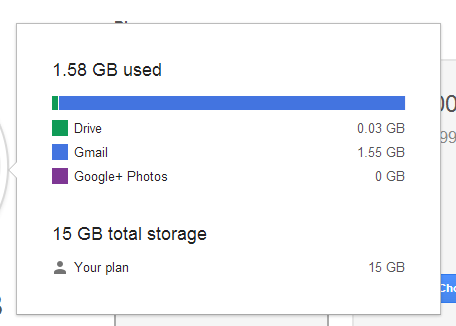
I've tested this by saving 2 FLAC attachments from 2 messages (about 43 MB) to Google Drive and deleting the associated messages from Gmail, including from the trash. Here's what I got:

* 1.58 GB used before moving files to Google Drive:


* 1.56 GB used after moving files to Google Drive:


To find Gmail messages with large attachments, you can use these operators. For example, search for [larger:5M] to find messages larger than 5 MB (that's the total size of the message).

Gmail's Google+ Interstitial

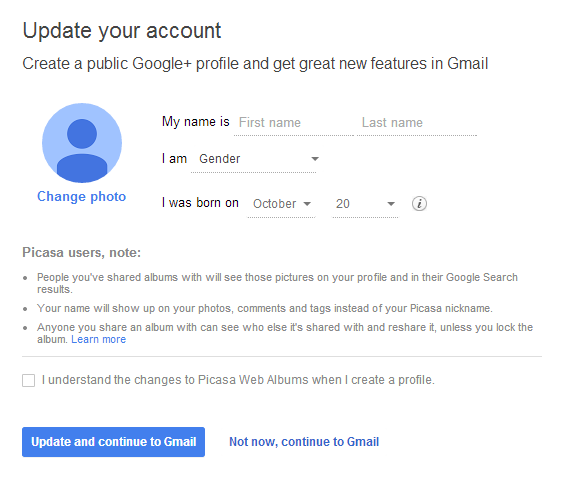
Google works hard to convince people to join Google+. I went to Gmail, signed in using an account that hasn't switched to Google+ and got this interstitial page (the URL starts with "https://plus.google.com/up/accounts/inter"):

"Update your account. Create a public Google+ profile and get great new features in Gmail."


You only have to check "I understand the changes to Picasa Web Albums when I create a profile" and click "Update and continue to Gmail". For now, you can ignore this page and click "not now, continue to Gmail".

More About Gmail's New Attachment UI

After more than a week of waiting, I got the new interface for Gmail attachments and it's much better than I expected. Most of the features from the old interface are still available, but there are some new Google Drive features that improve the user experience.

Here are some of my favorite features:

1. Thumbnails - they're displayed for many files, not just for photos. They help you distinguish between attachments and they're especially useful for PDF files, presentations and photos.


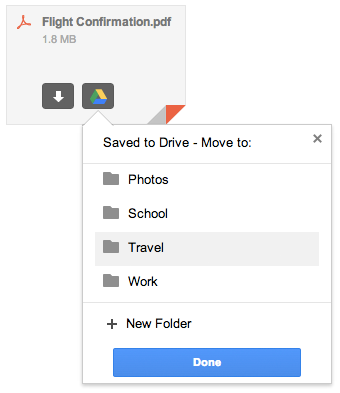
2. Save to Drive - mouse over an attachments, click "save to drive" and you can select the Drive folder where to save the file. You no longer have to visit Google Drive to move the file. Please note that the file is automatically saved to Google Drive and selecting a folder is optional.


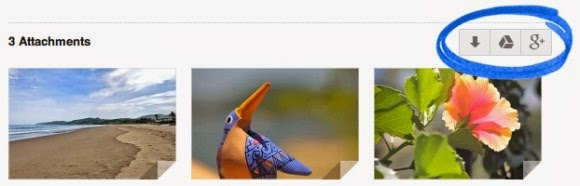
3. Save all to Drive - if a message has more than one attachment, you can save all the files to Google Drive with one click. You only need to find the Drive button placed next to the attachments. You can also click "download all" to download a ZIP file with all the attachments.


4. Show in Drive - Gmail is smart to remember when you save a file to Google Drive and replaces "save to Drive" with "show in Drive", which opens the file in Google Drive. "Save all to drive" is disabled after clicking the button once.

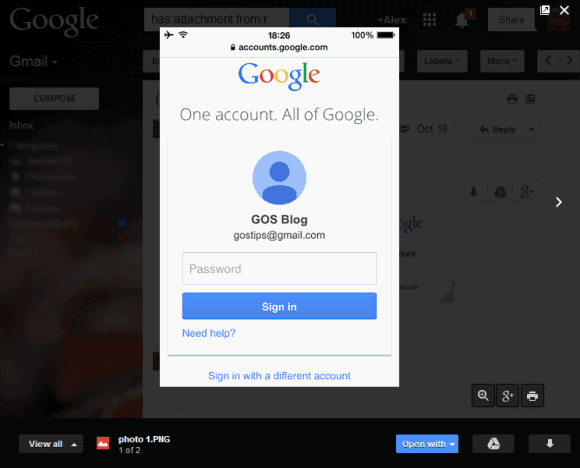
5. Quick preview - just click an attachment and you can preview the file inside Gmail. This works for photos, PDF files, documents, spreadsheets, presentations and more. To scroll down, use the mouse wheel, the down arrow key or Page Down. You can click the "pop out" icon next to "x" to open the preview in a new tab. To close the preview box, press Esc or click the "x" icon.


6. Slideshow - you can quickly go to the next attachment by clicking the arrow icon or by using keyboard shortcuts (right arrow key). Use the left arrow key to go back to the previous attachment. This is only a manual slideshow, there's no support for automatic slideshows.

7. Share photos on Google+ - click the attachment, then click the Google+ button at the bottom of the page. For multiple image attachments, click the Google+ button next to the list of attachments and you can share all the images on Google+.

8. Print files - click the attachment, then click the "print" button at the bottom of the page.

9. Zoom in/zoom out/zoom to fit - use the zoom buttons for a more in-depth look.

10. Edit files - for files you can import in Google's Drive apps, you'll also see a button like this when you mouse over the attachment: "Edit in Google Sheets", "Edit in Google Docs" or "Edit in Google Slides". Click the button to save the attachment as an editable file.

When you preview the file, you can click "Open with" and select an app that handles your file. This is not limited to Google's apps, so you can select apps like Zoho, DocuSign and more.

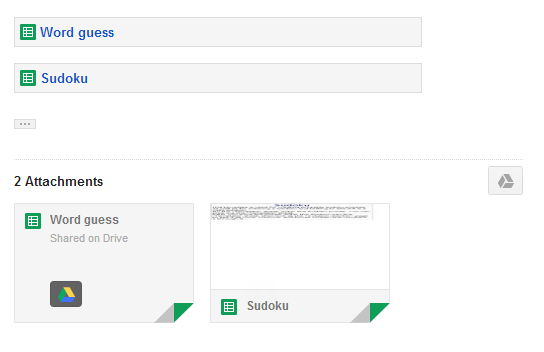
Oh, and one more thing: links to Google Drive files are treated as attachments.


While the new interface is great, I found a some annoyances. There's a cool feature that is no longer available in the new interface: it allowed to see all the image attachments on a single page. Another downside is that you need to mouse over an attachment to see the entire filename and its size.

{ Thanks, Stefan. }

New Gmail Interface for iPad

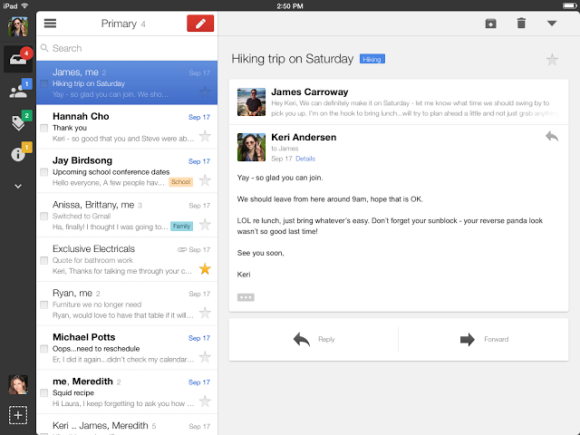
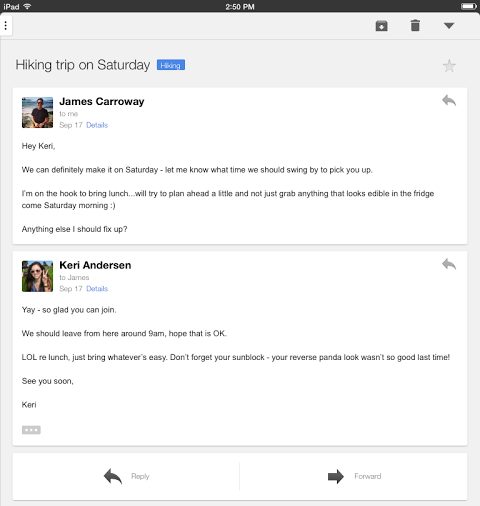
Google updated the Gmail app for iOS and added a new interface for iPad. The sidebar that lets you go to a label or a different mail account is now persistent in the landscape mode and it's a lot smaller. It only shows your inbox tabs and the number of unread messages from each tab, but you can tap the arrow icon to find your labels. Unfortunately, you can't select some labels that are always displayed, like you can do in the desktop Gmail.


The sidebar that displays the messages from the current view is now hidden in the portrait mode, so you can better read your mail. You need to tap the three dot icon to see the list of messages, but you can also swipe from the left edge. The built-in mail client from iOS also hides the messages list in portrait mode.


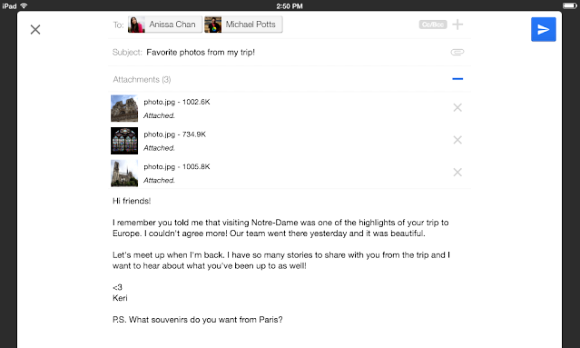
There's also a full-screen compose box, so you get more room to write your messages.


Google mentions some other improvements: a better scrolling experience and some iOS7 features like the new keyboard.

The new Gmail for iPad has a lot in common with the updated Google Drive app for iPad. Google spends a lot of resources to make its UIs more consistent, so I wouldn't be surprised to see these interfaces added to the desktop.

{ via Gmail Blog }

Star Gmail Ads

Remember Gmail's ads that look like regular mail and are also displayed in the promotions tab? Google disabled many of the features that were available for regular messages, so you couldn't mark them as unread, flag them as spam, label them or add them to Google Tasks. The fake messages were only available in the web interface, so you couldn't find them if you used other email clients.

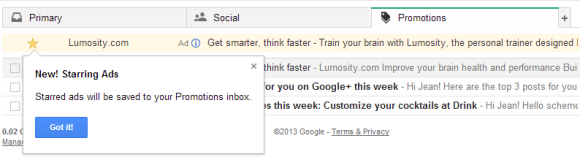
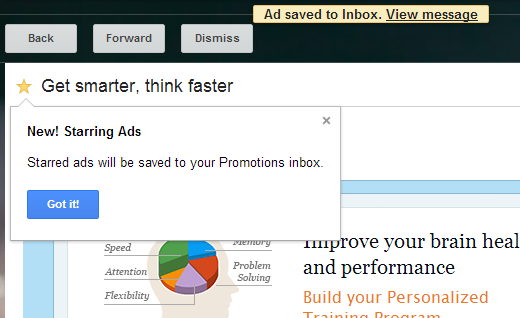
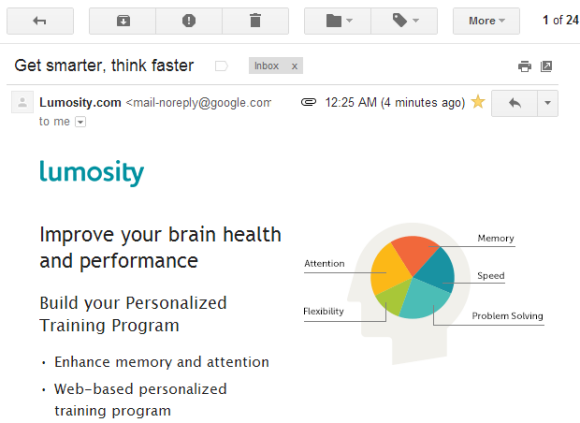
Now you can convert the fake messages to regular messages: just star the ads and they are saved to your inbox as messages received from mail-noreply@google.com. "New! Starring Ads. Starred ads will be saved to your Promotions inbox," informs Gmail. While the messages are added to the Promotions tab, you'll also see them in the Primary tab because all the starred inbox messages are added to the Primary tab by default. You can unstar the messages, delete them, archive them (just don't send a reply).


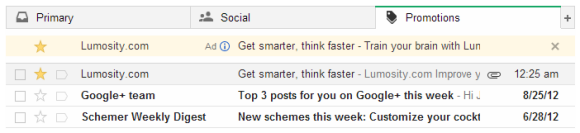
This screenshot allows you to see both the ad and the message created from the ad after starring it. The ad is removed after a few seconds, so you don't get duplicates.


Here's the ad:


... and the message created by Google:


All the sponsored promotions that are available for your account can be found at: https://mail.google.com/mail/#pinbox.

Gmail's New Attachment UI, Powered by Google Drive

An hour after posting about Gmail's new attachment UI, Gmail's blog announced the new feature:

"With today's update to Gmail, (...) you can view attachments and save files directly to Google Drive without ever leaving Gmail, making it easy to access them later from whatever device you're on - computer, phone or tablet. The next time you open an email with attachments, you'll see new previews of the files at the bottom of the email, from photos and videos to spreadsheets and PDFs."


Gmail now shows thumbnails for many file formats. Mouse over an attachment to download it or save it to Google Drive.


Gmail shows a list of Google Drive folders, so you can save the file to the right folder directly from Gmail. You can also download all the attachments or save all of them to Google Drive.


Click the attachments to preview files inline using Google Drive. The nice thing is that Google Drive Preview opens inside Gmail.


"This new attachment experience is available on desktop and will be rolling out over the next week," informs Google, which also mentions that Google Drive has 120 million active users.

{ via Gmail's blog }

Gmail Tests a New Interface for Attachments

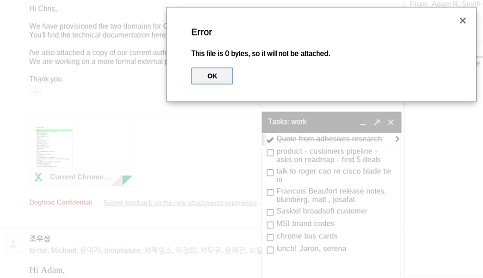
Google tests a new interface for attachments internally. A screenshot from a Google employee reveals a Gmail attachment, followed by "Dogfood confidential - submit feedback on the new attachments experience".


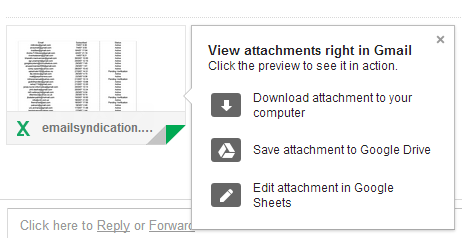
The attachment from the screenshot appears to be an Excel spreadsheet and Gmail shows a thumbnail, the title of the file and an icon that's also used in Google Drive for Excel files. Here's the standard interface:

As you can see, the new Gmail UI uses a different icon and no longer displays options like "View", "Open as a Google spreadsheet" or "Download". It's not clear what happens when you click the attachment, but I assume it sends you to Google Drive, where you can preview the file or download it.

It's likely that Google wants to move Gmail attachments to Google Drive. Now Gmail and Google Drive use shared storage and Google Drive provides better ways to manage, search and share files.

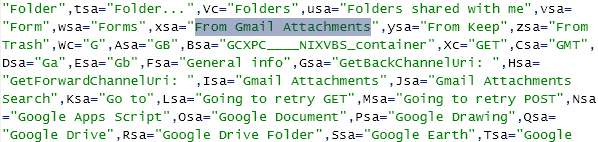
Here's some Google Drive code which suggests that Drive could include some system folders for Gmail attachments and Google Keep notes.


{ Thanks, Florian K. }

Gmail's Old Compose Interface, Still Available

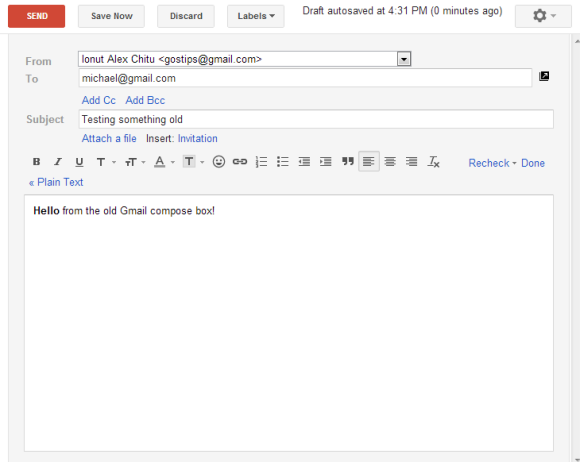
A lot of people complained about Gmail's new compose interface. Google addressed some of the issues with the "full-screen" mode, but there are still people who dislike the new UI.

If you want to go back to the old interface, there's a Chrome extension that does this: Retro Compose for Gmail. I rarely recommend third-party apps that change Gmail, especially if they're not from a reliable company or developer. I checked the extension's source code and I was surprised to see how it works: it changes your browser's user-agent to IE8's user-agent, but only when loading Gmail. As Google says, "you won't be able to try the new compose experience if you're using Internet Explorer 8". I'm not sure why the extension is not restricted to mail.google.com.


I tried to manually change the user-agent in Chrome and Firefox, but Gmail redirected me to this page:
"Gmail requires ActiveX controls to be enabled". Pressing F12 in IE10 and switching to "Browser mode: IE8" worked.

Obviously, this is a temporary workaround. At some point, Google will stop supporting Internet Explorer 8 and this will no longer work. It's a better idea to get used to the new interface.

Update: Here's a similar Chrome extension that doesn't have a button and has better permissions.

{ Thanks, 翔美咲. }

Better Gmail for Feature Phones

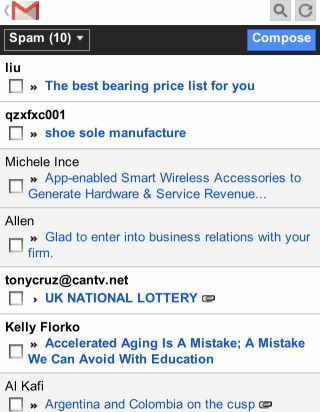
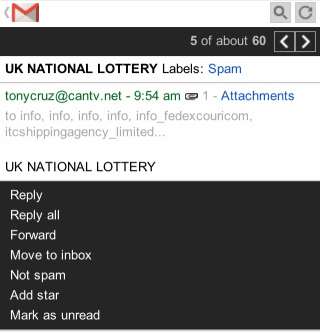
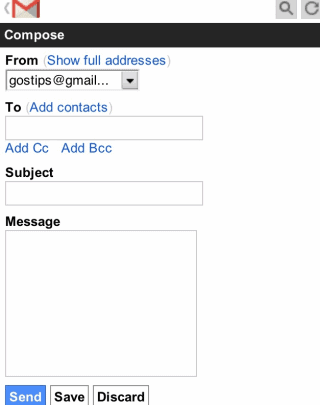
There are still a lot of people who use feature phones and Google decided to improve the Gmail interface for these phones. The new version is closer to the smartphone UI, but it doesn't use AJAX, so you have to load a new page every time you perform an action.

"You'll get a number of improvements that reduce the number of button presses required to read, reply and compose emails. For example, you can reply directly to a message from the thread view, you can choose to move to the previous or next conversation, and much more," explains Google.


Gmail used to have a Java app for feature phones, but this is no longer available, at least not officially. Probably the best option to read your messages on a feature phone is to install Opera Mini and use the mobile Gmail site. Speaking of Opera Mini, you'll get the same "feature phone" Gmail interface even if you use an iPhone or an Android phone.

Gmail's Option for Excluding Chats from Search Results

Gmail's advanced search box has a new option: "don't include chats". If you click the checkbox, Gmail will append to your query: "-in:chats".


To see the advanced search box, click the small arrow icon from the Gmail search box. It's an easy way to use powerful Gmail features if you don't want to manually add operators like from:, to: or has: to your searches. You can also create filters.

Better Photo Attachments in Gmail's iOS App

The latest version of the Gmail app for iOS added a better way to open photo attachments. Until now, you had to tap each photo to open it using the app's internal browser and go back to the message.


Now you can tap a photo attachment and use swipes to go to the next or previous image, just like in the built-in Photos app.


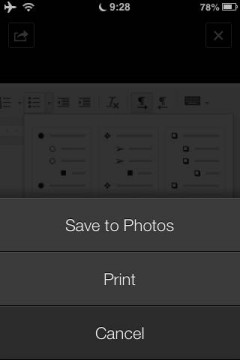
The "print" link is no longer displayed next to the thumbnail, but it's still available in the actions menu. For some reason, filenames are no longer included.


Another new feature: "when selecting a Google Drive file or Google+ link you'll now go directly to the app if it's installed. This can be turned off using the in-app settings."

{ via +Gmail }

Use Gmail's New Compose Interface for Replies

When Gmail launched the new compose interface, I wondered why the interface for replying to other messages is different. By default, when you reply to a message or you forward a message, Gmail shows the rich-text editor below the message, just like before.

There are a few ways to make the reply box look like the compose box, so you can open other messages or use Gmail's search feature while replying to a mail.

1. Shift-click the "reply" link or the entire box that includes the message "Click here to Reply or Forward". You can also Shift+click "forward" to open the forwarded message in a pop-out box.


2. Use keyboard shortcuts: Shift+r to reply in a pop-out box, Shift+a to reply to all, Shift+f to forward in a pop-out box.

3. If you've already writing the reply, click the arrow above your reply and pick "Pop out reply".


To go back to the regular interface, minimize the compose box, find this message "You are currently editing your reply in a separate window" and click "Show your draft here."